
Your customers message your WhatsApp number. The AI receptionist replies instantly, answers common questions from your FAQs and menu, and can book appointments. When it can't help, it hands the chat to your team.
Connect your WhatsApp number
How to do it
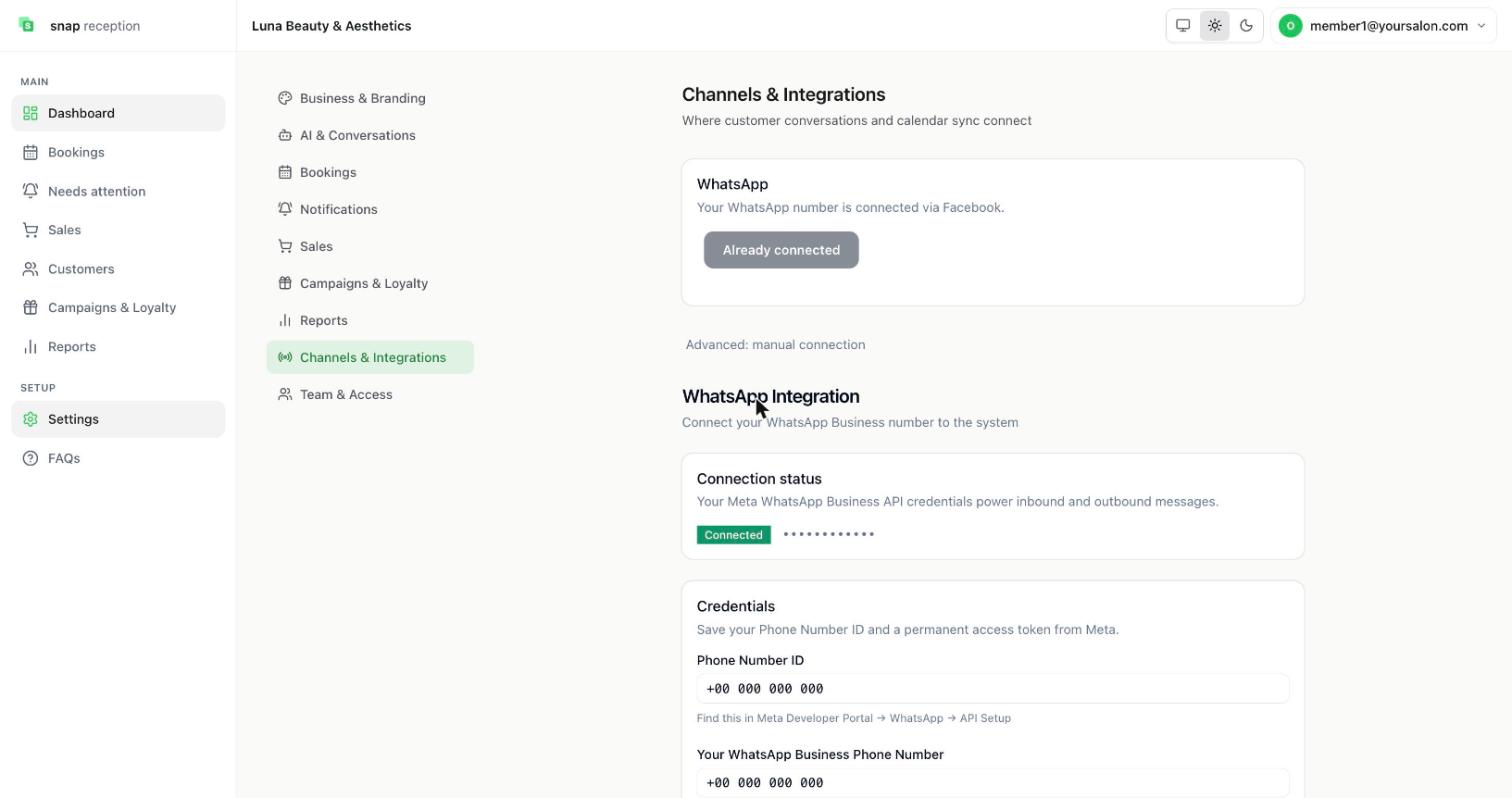
- Open Settings → Channels & Integrations.
- Under WhatsApp, connect through Facebook. When it's done the button reads Already connected and Connection status shows Connected.
- Only if the standard way doesn't work, open Advanced: manual connection and enter the Phone Number ID, your WhatsApp Business phone number and a permanent access token from Meta.
What it does
Links your business WhatsApp number to Snap Reception so inbound messages reach the AI and your dashboard, and replies go out from your number.
Use cases
First-day setup for a new salon.
Workaround for
Answering WhatsApp from a phone all day.
Side effects
- Once connected, customers' messages are answered automatically until you take over a chat.
- Messages to customers can only be sent in WhatsApp's allowed ways: free text within 24 hours of the customer's last message, otherwise approved templates.
Limits and gotchas
- Treat the access token like a password. Never paste it into chats, emails or screenshots. The page hides it as dots after saving.
- This page also hosts Google Calendar sync settings.
Conversations (Sessions)
How to do it
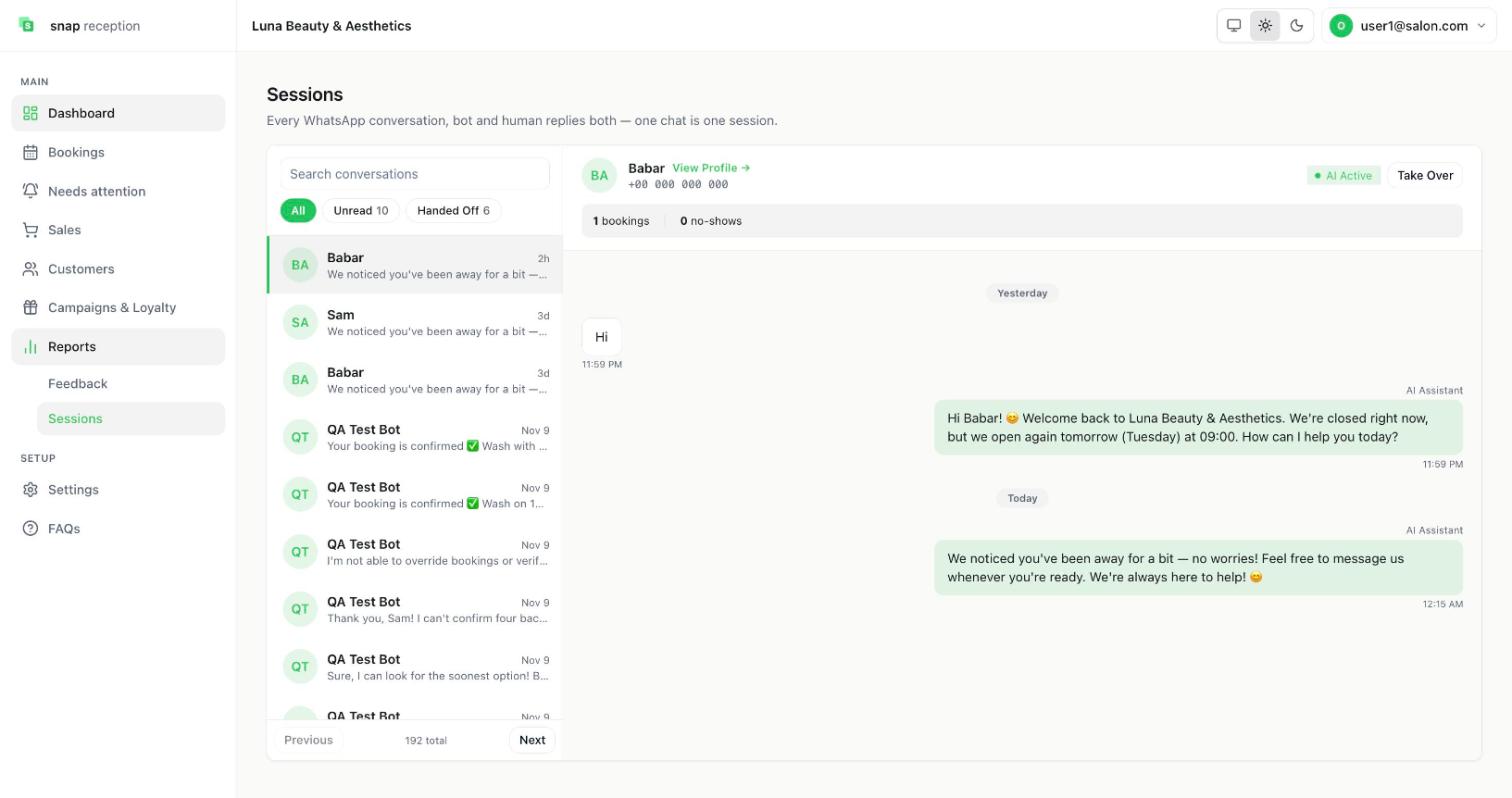
- Open Reports → Sessions.
- Use the tabs All, Unread (10) and Handed Off (6), or search conversations.
- Click a chat to read it. The header shows the customer, their phone, and a summary such as "1 bookings, 0 no-shows".
- Press View Profile → to open the customer record.
What it does
Shows every WhatsApp conversation, both the AI's and humans' replies. One chat is one session. AI messages are labelled AI Assistant. The badge on the right shows AI Active or that a person has taken over.
Use cases
Checking what the AI told a customer; finding why a booking failed; reviewing quality.
Workaround for
Scrolling through WhatsApp on a phone to see what your staff or bot said.
Limits and gotchas
- The dashboard's Action Center shows how many chats need a human reply.
- A conversation list can be long (192 total in the example). Use search and the Handed Off tab.
Take over a chat and reply as staff
How to do it
- Open the chat in Sessions.
- Press Take Over.
- Type your answer in the reply box ("Reply as staff — this will be tagged Human") and send.
What it does
Stops the AI replying in that chat so a person can talk to the customer. Your replies are tagged Human in the conversation history.
Use cases
A complaint, a special request, a VIP who wants a person.
Workaround for
Texting the customer from your personal phone and losing the thread.
Side effects
- While a person is in the chat, the AI stays out of it.
- WhatsApp's 24-hour window still applies: you can only send free text within 24 hours of the customer's last message.
Needs attention (requests the AI couldn't finish)
See Bookings → Needs attention in the Bookings guide. Chats the AI hands off appear in Sessions → Handed Off and in the dashboard Action Center.
AI settings
How to do it
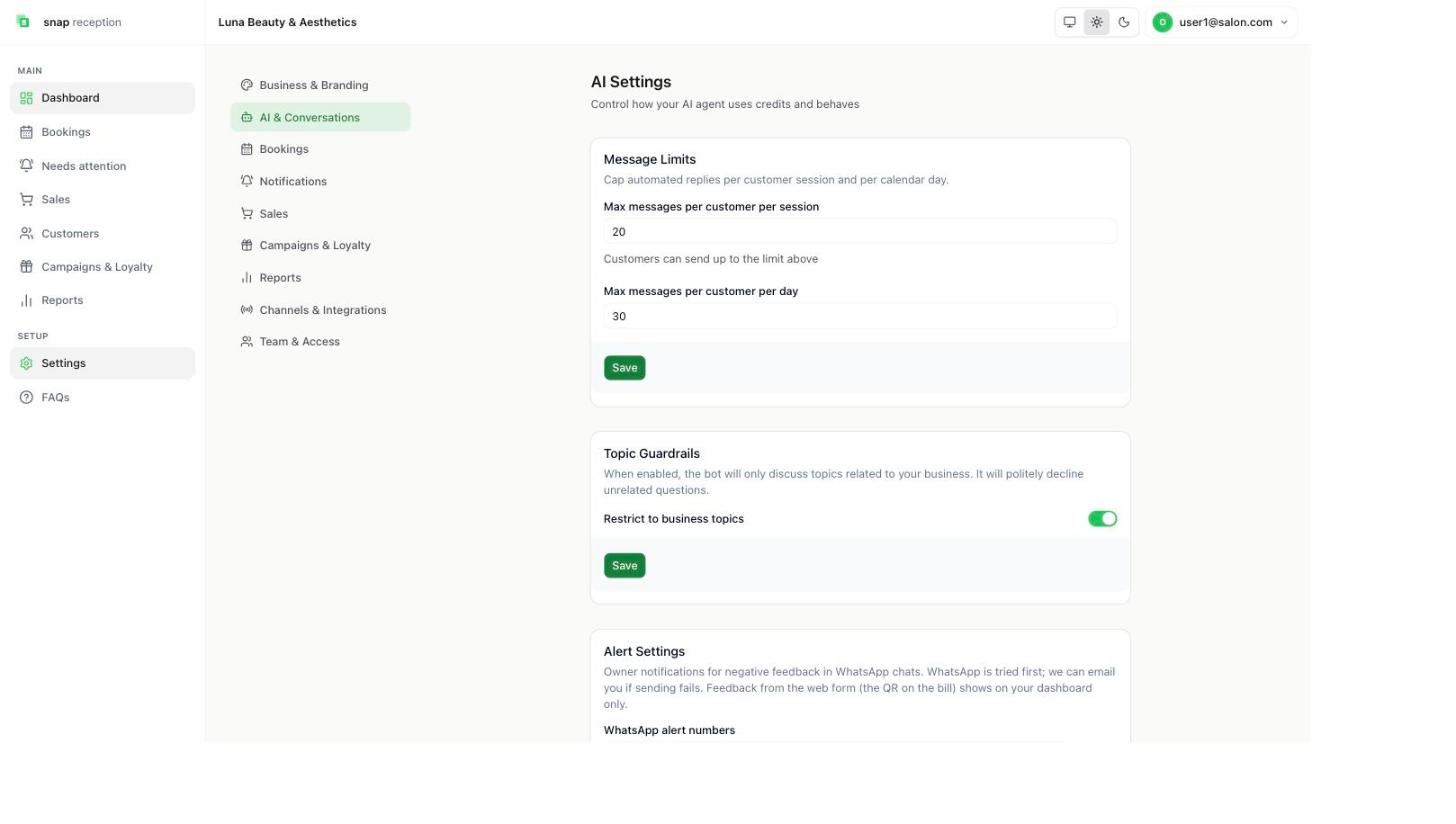
- Open Settings → AI & Conversations.
- Message Limits: set the most automated messages per customer per session and per day.
- Topic Guardrails: switch on Restrict to business topics so the bot only discusses your business and politely declines the rest.
- Alert Settings: add one or more WhatsApp alert numbers (with country code) and an Email Alert for negative feedback in WhatsApp chats.
- Monthly Budget Cap: set a maximum monthly AI spend in USD, and switch on the alert for when you reach 80%.
- Credit Balance shows the AI credits for replies; they reset monthly.
- Press Save under each card. Each card saves on its own.
What it does
Keeps the AI's cost and behaviour under your control.
Use cases
Stopping one customer from running up cost; keeping the bot on topic; being told fast about an unhappy customer.
Workaround for
Watching every chat to make sure the bot behaves.
Side effects
- When the monthly cap is reached, the bot switches to FAQ-only mode and alerts you.
- Negative feedback is sent to your WhatsApp numbers first, with email as a backup. Feedback from the web form (the QR on the bill) shows on the dashboard only.
- Change Password for your login is also on this page.
Limits and gotchas
- "Notify me when the AI hands off to a human" is saved but not active yet. The page says it is not wired to a live trigger. Use the Action Center and the Handed Off tab instead.
- The credit top-up button is disabled ("Coming soon").
- Your save on one card does not save the others.
Handoff and agents
How to do it
- In Settings → AI & Conversations, use the Handoff & Agents card (visible with the Agents permission).
- Press Add and enter the agent's Name and Working hours. Use Edit or the delete button on an agent's card.
What it does
Lists the people who handle chats the AI passes on, with the hours they are available.
Use cases
A receptionist who works mornings only; a manager covering weekends.
FAQs
How to do it
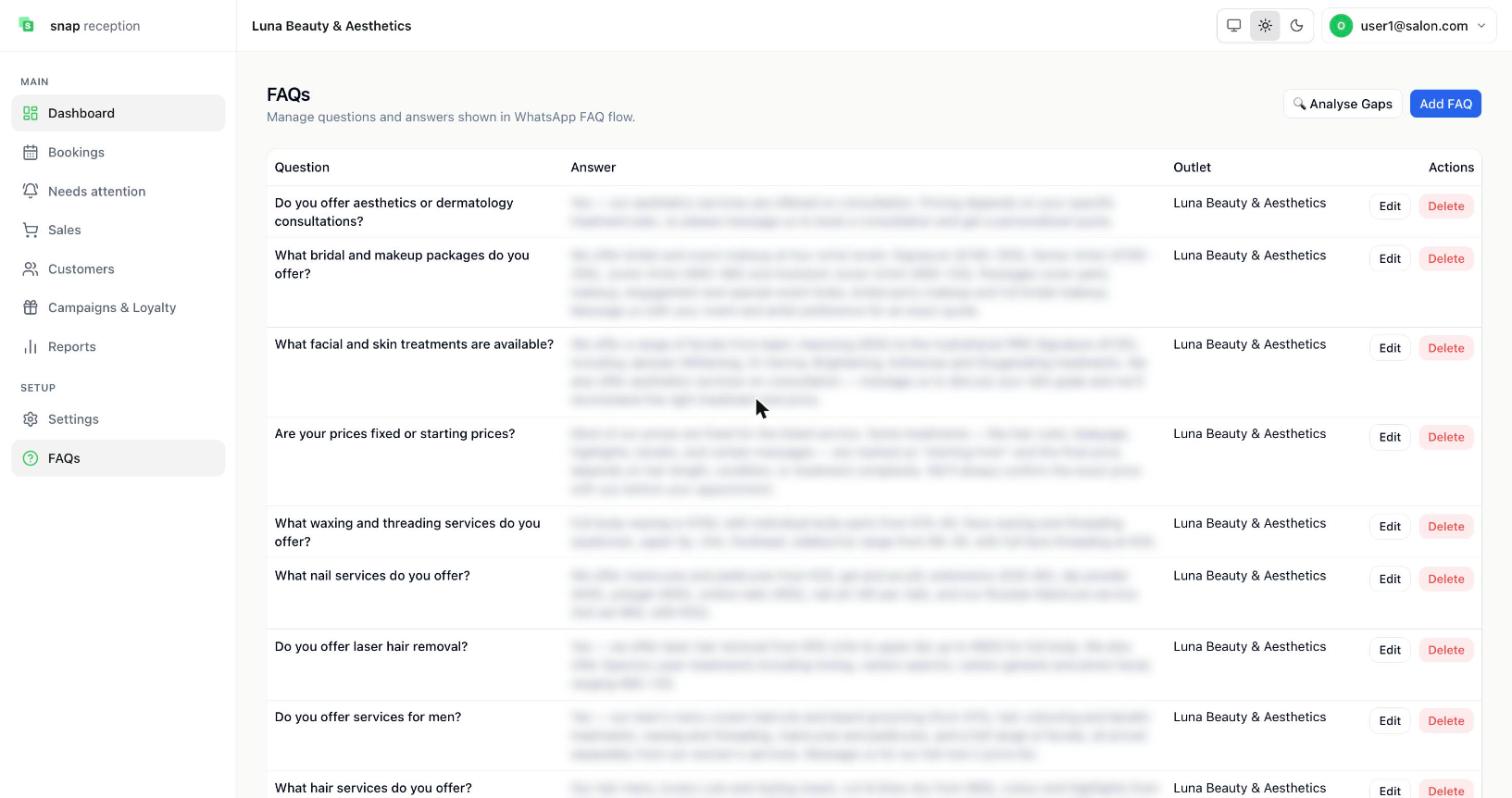
- Open FAQs in the left menu.
- Press Add FAQ and type a Question and an Answer, then choose the Outlet it applies to. Use Edit or Delete on any row.
- Press Analyse Gaps to see which questions customers ask that you haven't answered yet.
What it does
These are the questions and answers shown in the WhatsApp FAQ flow, so the AI answers from your wording, with your prices and policies.
Use cases
Opening hours, parking, how deposits work, which services you do for men, bridal packages.
Workaround for
Typing the same reply 20 times a day.
Side effects
- Answers are what customers receive on WhatsApp. A wrong price here becomes a wrong price to customers.
- Each FAQ belongs to an outlet.
Limits and gotchas
- Keep answers short and current. Update them when prices change.