
Customers
How to do it
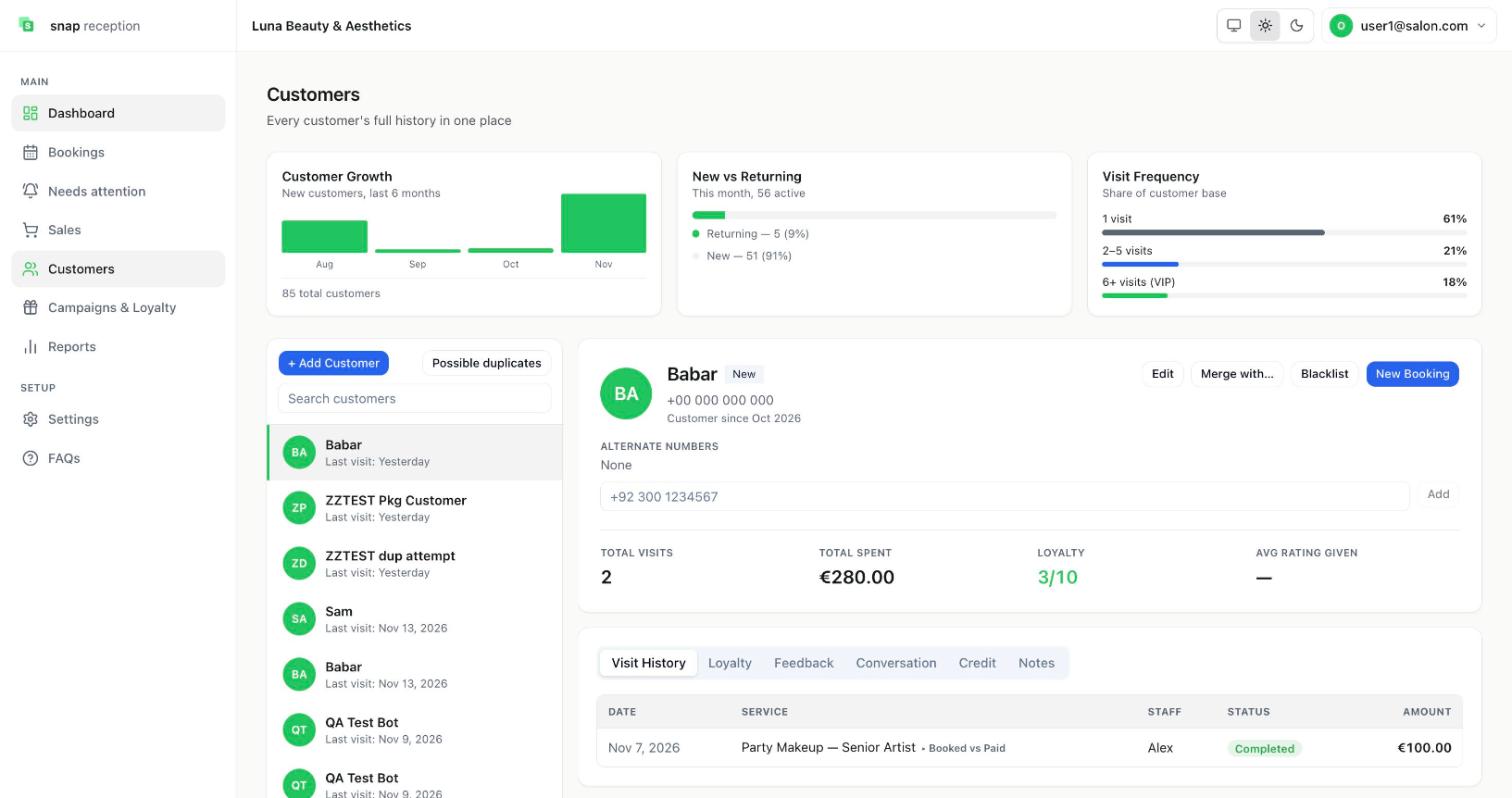
- Open Customers. The list on the left can be searched. Click a customer to see their profile on the right.
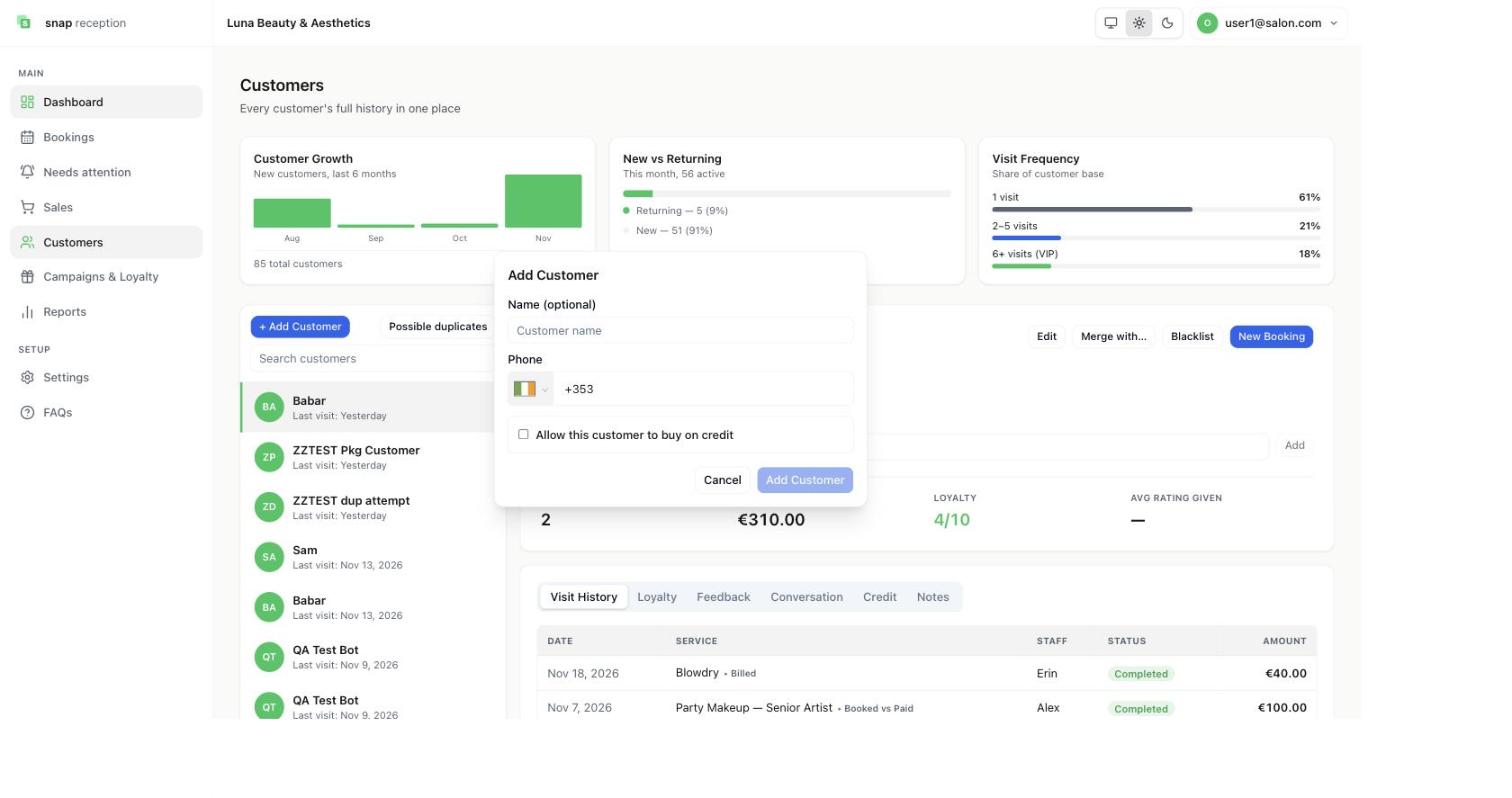
- Add someone with + Add Customer. A small form opens: Name (optional), Phone (with a country selector) and a checkbox Allow this customer to buy on credit. Press Add Customer. Use Edit later to change details.
- On a profile, the tabs are Visit History, Loyalty, Feedback, Conversation, Credit, Notes.
- New Booking on a profile starts a booking for them.
What it does
Keeps one record per customer with their phone, visit history (date, service, staff, status, amount), total visits, total spent, loyalty progress (for example 3/10) and average rating given. Three charts on top show customer growth over six months, new vs returning this month, and visit frequency (1 visit, 2–5, 6+ VIP).
Use cases
Knowing a regular's history before she arrives; spotting who stopped coming; reading the WhatsApp conversation from the profile.
Workaround for
Saving clients in your phone contacts and scrolling old chats.
Side effects
- Phone numbers are checked as you type (country selector, like WhatsApp). A number that isn't valid for the country is refused.
- A customer who messages you on WhatsApp is created automatically.
- Blacklist marks a customer so you can see they were blocked.
- Adding a customer changes nothing else. A booking or a sale is needed to create a visit. After a bill, the visit shows as Billed and the customer earns a loyalty stamp.
Limits and gotchas
- Use the same phone format every time (with country code). The same person in two formats can become two customers.
- A foreign number picked from the existing list keeps its own country code. It is not stuck with your branch code.
- You need the Edit customer details permission to change a profile.
Merge duplicate customers and alternate numbers
How to do it
- Press Possible duplicates on the Customers page to see likely matches, or open a profile and press Merge with….
- Choose the main customer, pick which details to keep, and review the warnings.
- Confirm. To undo, use Restore a merge.
- To add a second number to one customer, use Alternate numbers on their profile: type it and press Add.
What it does
Combines two records for the same person into one. Visit history, bookings and loyalty move to the main record. The other record is archived, never deleted, and its original number is kept so a restore is exact. An alternate number makes that number find the same customer. A brand-new customer is not created for a number that is already a known alternate.
Use cases
The same client saved as 089… and +353 89…; a client who changes phones but keeps booking from both; a name typo creating a second record.
Workaround for
Telling reception "that's the same lady" and live with two histories.
Side effects
- Visit counts change. After a merge, the combined visits can cross a loyalty milestone; the screen warns you first.
- Names that differ are flagged before you merge. A blocked (blacklisted) customer stays blocked after the merge if either was.
- Nothing is merged without confirmation. Every move is recorded so it can be reversed exactly.
- Permissions: Merge duplicate customers, Restore a merge and Manage alternate numbers are Owner-only by default.
Limits and gotchas
- Records created after a merge are not undone by a restore; they stay where they are.
- Don't merge two people who share a family phone. Use an alternate number instead.
Services
How to do it
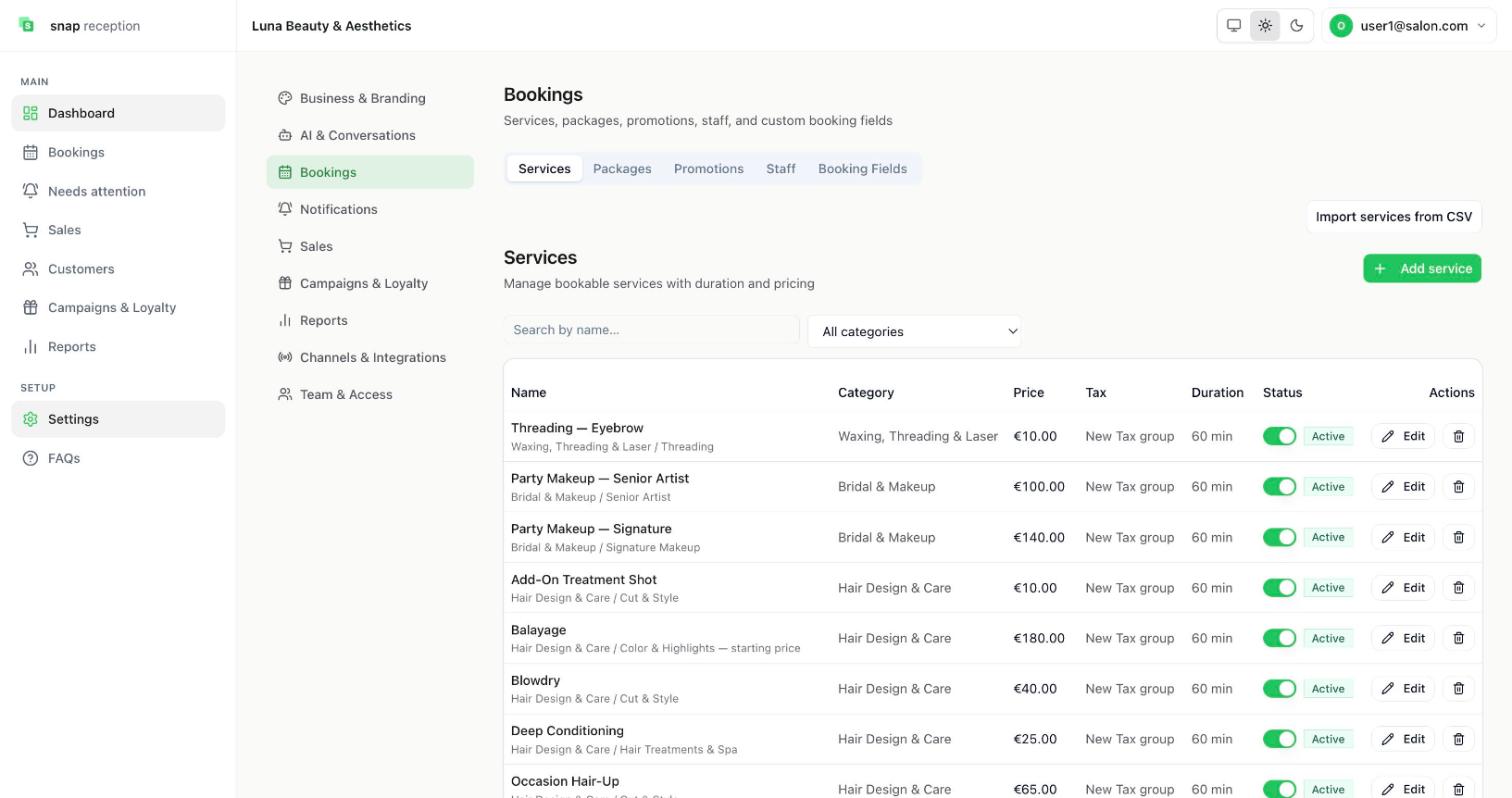
- Open Settings → Bookings → Services. (The tab is called Menu for restaurants.)
- Search by name or choose a category.
- Press Add service. Fill in the Name, pick a Category (choose an existing one so customers and promotions see one name), an optional Description, the Price, a Tax group (rates and groups are managed in POS Settings) and the Duration in minutes. Name, price and duration are required.
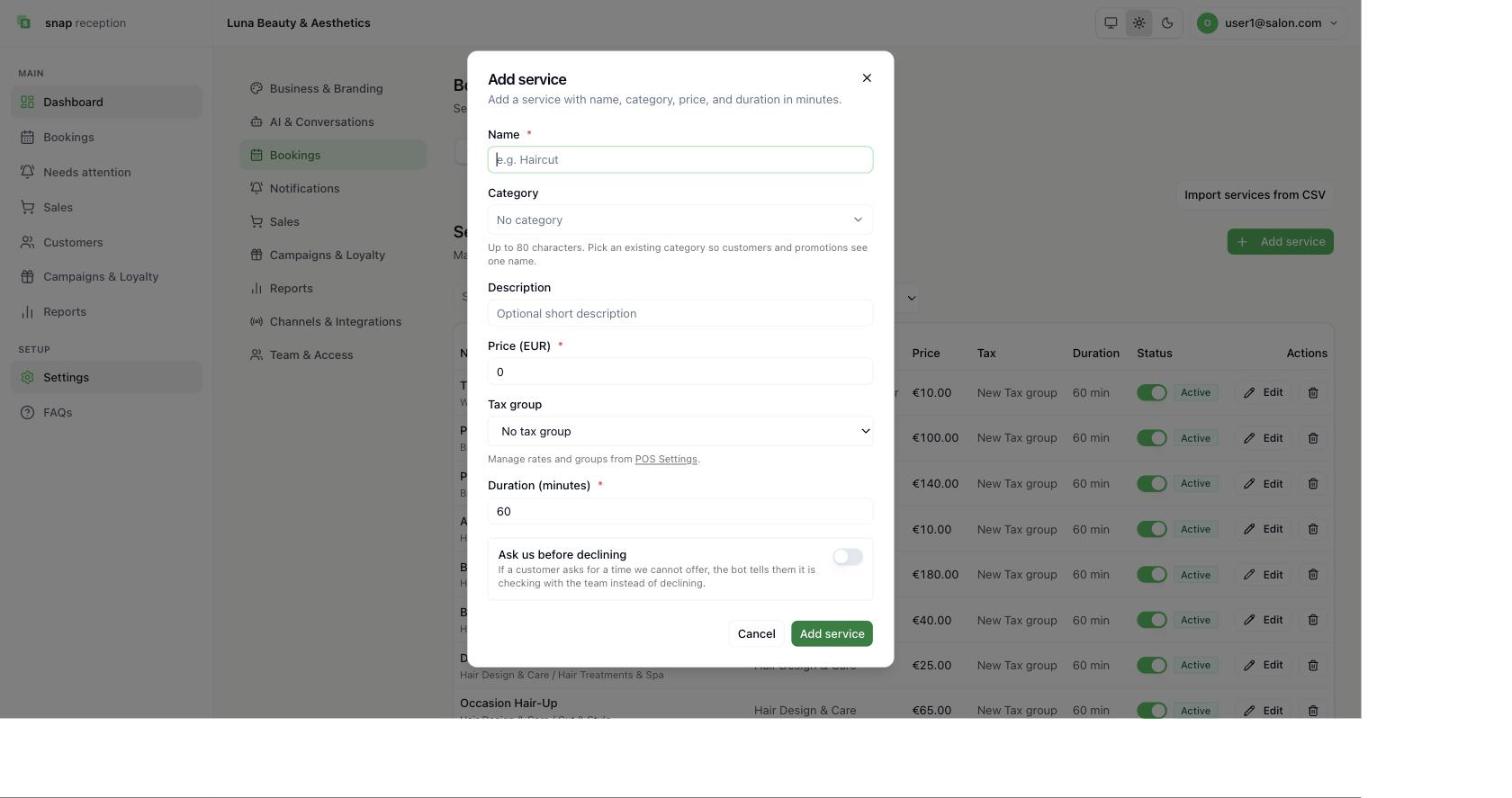
- Switch on Ask us before declining if you want the bot to say it is checking with the team, not decline, when a customer asks for a time you can't offer.
- Use the toggle to make a service Active or hidden, Edit to change it, and the bin to remove it.
- Import services from CSV loads many at once.
What it does
Defines what customers can book and what you sell. Each service has a price, tax group and duration (shown in the list). Active services are offered to customers and in Sales.
Use cases
Setting up on day one; raising prices; hiding a seasonal service.
Workaround for
Re-typing prices at every sale.
Side effects
- The WhatsApp assistant offers only active services, with their durations and prices.
- Needs the Catalog management permission to change.
Limits and gotchas
- A service that staff aren't set up to perform can't be booked. Check Unmapped services on the Staff tab.
- Prices show in your outlet's currency format.
Packages
How to do it
- Open Settings → Bookings → Packages and press Add package.
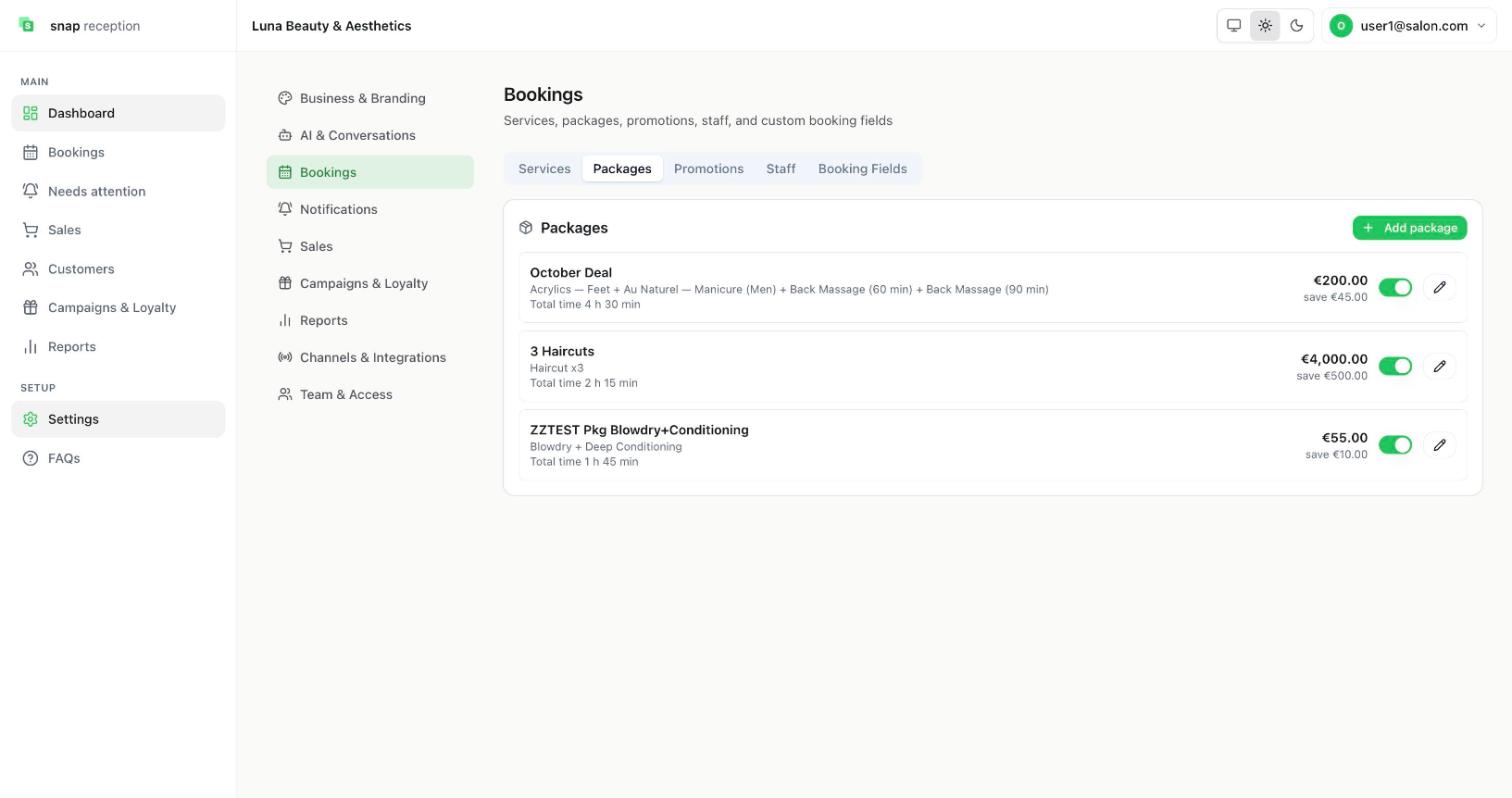
- In Add a package, type a Name, choose each included service with Choose a service (use the arrows to reorder and the × to remove, Add service for more), set the Package price, and press Add package. Use the toggle to switch a package on or off, and the pencil to edit.
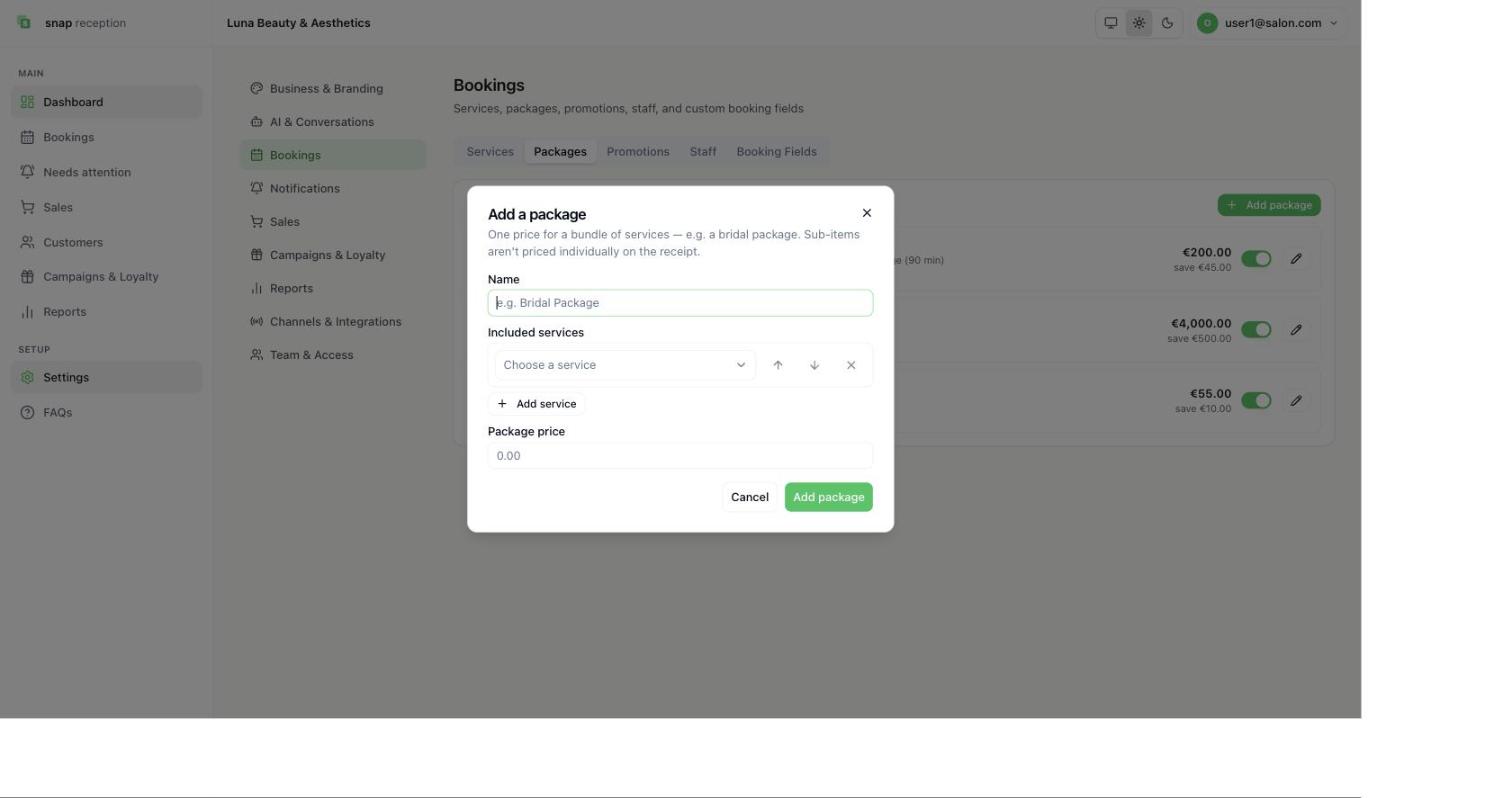
The box explains: "One price for a bundle of services, for example a bridal package. Sub-items aren't priced individually on the receipt."
What it does
Bundles services at one price. The list shows the services included, the total time, the package price and how much the customer saves.
Use cases
"Bridal trial and day-of", "three haircuts for a set price", a seasonal deal.
Workaround for
Giving a discount by hand each time.
Side effects
- A package booked from the calendar is billed at the package price.
- A package asked for by a customer on WhatsApp together with other services is passed to your team under Needs attention.
- A sold package can be refunded line by line.
Limits and gotchas
- Packages are excluded from some promotions when the promotion says so (see below).
Promotions
How to do it
- Open Settings → Bookings → Promotions and press Add promotion.
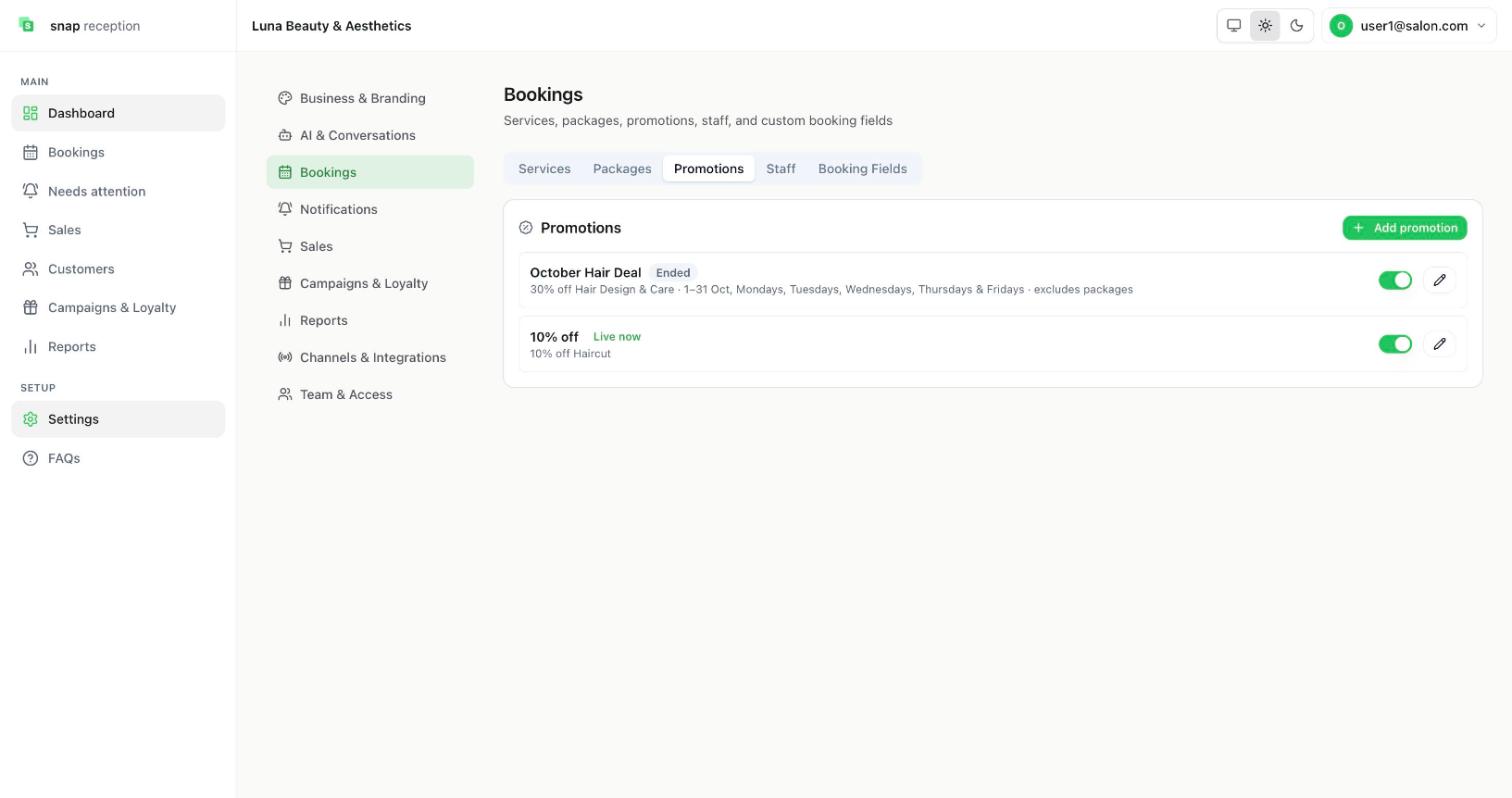
- Choose the discount, the services or category it covers, the dates and days of the week, and whether it excludes packages.
What it does
Applies a percentage or amount off to matching services during the dates and days you pick. Each row shows its state: Live now or Ended.
Use cases
"30% off hair, Monday to Friday in October."
Workaround for
Remembering to give the discount, and to stop giving it.
Side effects
- A promotion that has ended stops applying automatically.
Limits and gotchas
- Switch off a promotion with the toggle without deleting it.
Staff
How to do it
- Open Settings → Bookings → Staff (called Tables for restaurants).
- Press Add staff, or Import staff from CSV.
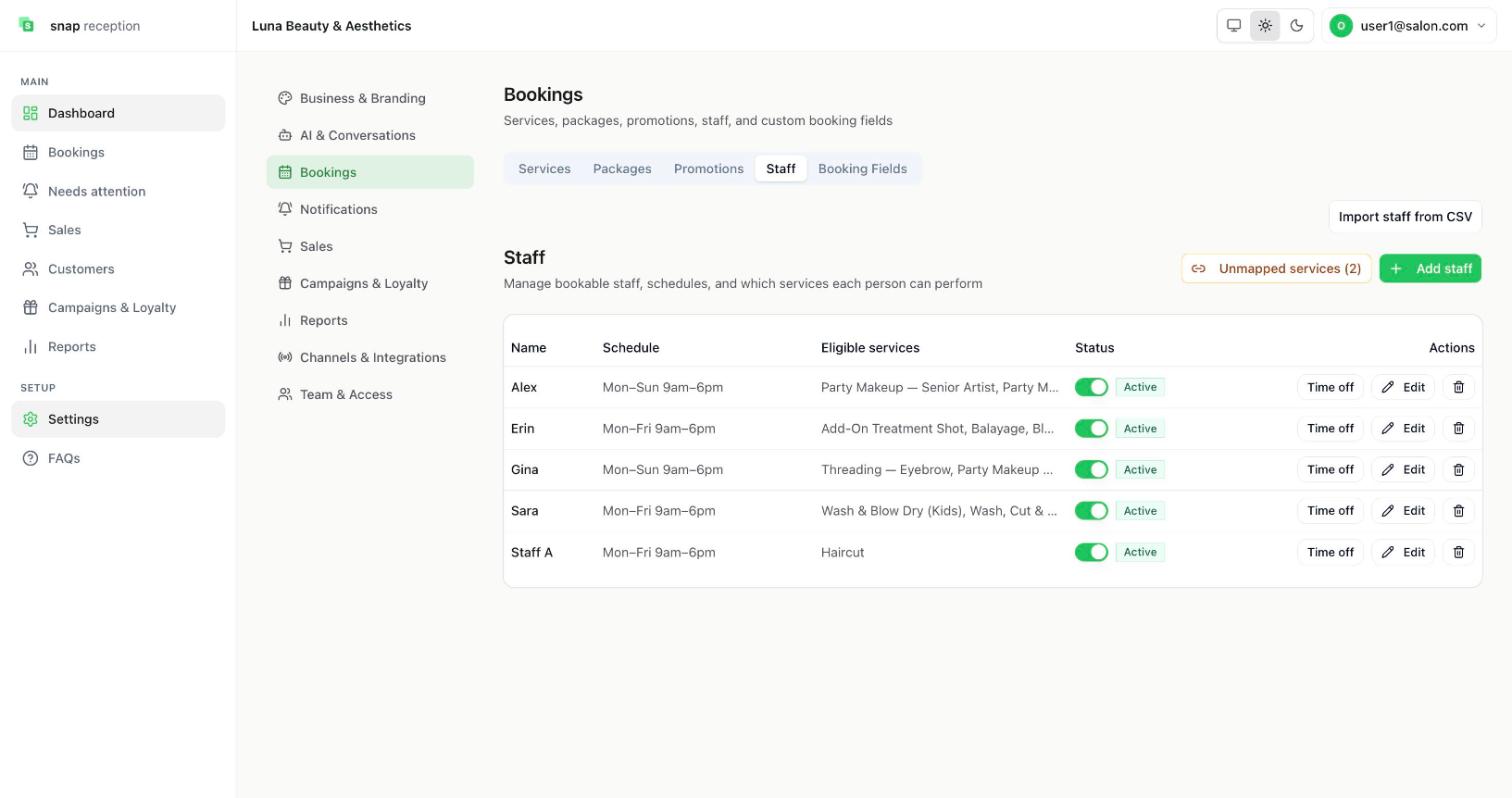
- For each person set their schedule (for example Mon–Fri 9am–6pm) and the eligible services they perform.
- Use Time off for leave, Edit for details, and the toggle to switch someone off.
- Unmapped services (2) warns that two services have nobody assigned. Click it to fix.
What it does
Tells the calendar and the WhatsApp assistant who works when and who can do what.
Use cases
Setting up a new stylist; marking a holiday; making sure a trainee only gets simple services.
Workaround for
Telling reception "she's off Thursday" and hoping.
Side effects
- Bookings are only offered inside a person's working hours and outside their time off.
- If a customer asks for a specific person who is busy, the request is passed to your team instead of being declined.
- Receptionists can see the staff list read-only. Changing it needs Catalog management.
Booking Fields (what the bot asks)
How to do it
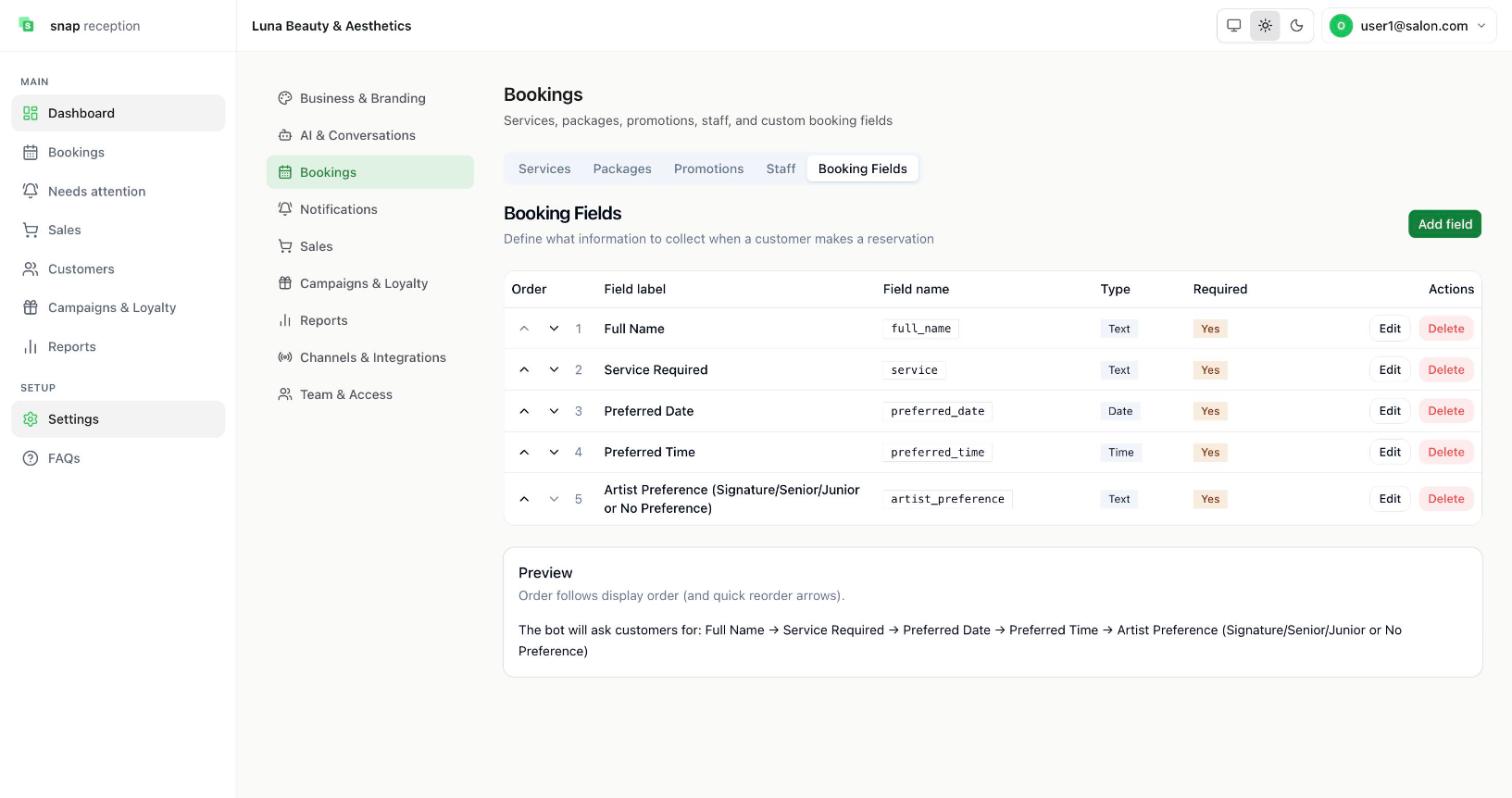
- Open Settings → Bookings → Booking Fields.
- Press Add field to add a question, or Edit one. Use the up and down arrows to change the order.
- Check the Preview: it shows the order the bot will ask.
What it does
Decides which details the WhatsApp assistant collects for a booking. Each field has a label, a name, a type (Text, Date, Time…) and whether it is required.
Use cases
Asking "Which artist level?" for makeup; asking for allergies before treatments.
Workaround for
Reception messaging each customer afterwards with the missing question.
Side effects
- Changes the live bot's questions straight away.
- Required fields must be answered before a booking can be saved.
Limits and gotchas
- Deleting a field removes the question. Use it with care.