
The calendar shows every appointment, by staff member, for a day, a week or a month. Bookings arrive from three places: your team adding them at the desk, customers booking by WhatsApp with the AI receptionist, and the website.
Who can use it: anyone whose role has the Booking System permission. Extra permissions control overbooking, editing services in a booking and receiving booking alerts.
The calendar (Day, Week, Month)
How to do it
- Open Bookings in the left menu.
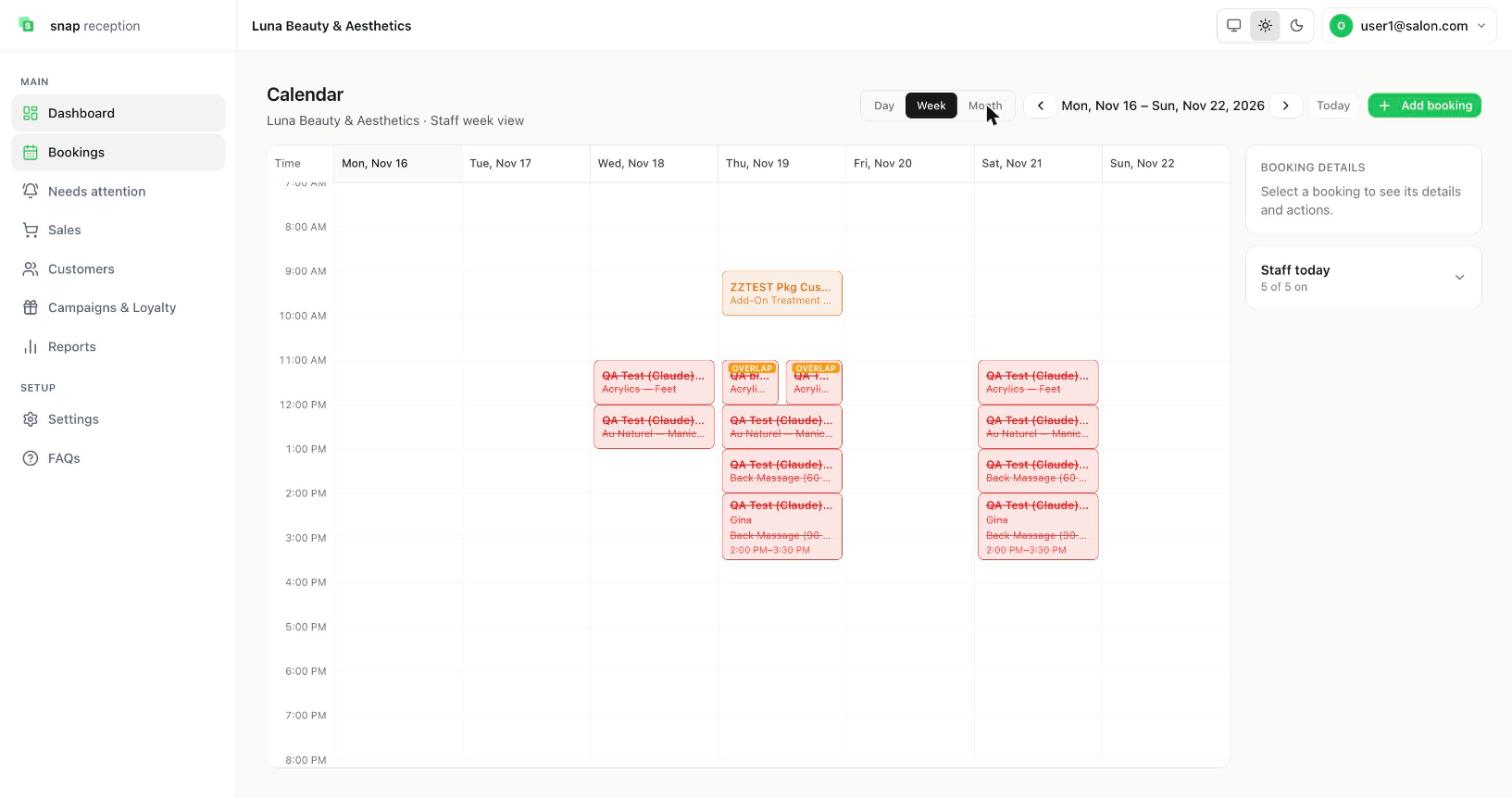
- Switch between Day, Week and Month at the top. Use the arrows or Today to move around.
- In the Day view each column is a staff member. In the Week view each column is a day.
- Click a booking to open Booking details on the right.
- Staff today (right side) shows how many of your team are working today.
What it does
Draws each booking as a block at its time, coloured by status. A cancelled booking is red with a line through it; a pending one is amber. When two bookings overlap for the same person, an OVERLAP badge appears on both. The calendar refreshes itself about every 15 seconds while the tab is open, and pauses while the tab is hidden.
Use cases
Seeing who is free; spotting clashes; checking what a staff member has on today.
Workaround for
A paper diary, a shared Google Calendar, or asking staff on WhatsApp "are you free at 3?".
Side effects
Viewing changes nothing.
Limits and gotchas
- A booking made by your own team never creates an alert (the person at the desk just made it). Only customer bookings do.
- If a late reload arrives while a newer one has already loaded, the newer data wins. You will not see old data overwrite new.
Booking statuses
| Status shown | Meaning |
|---|---|
| Pending | Held, waiting for the team to confirm. |
| Confirmed | Accepted. |
| In Service | The customer is being served. |
| Completed | Finished. |
| Cancelled | Cancelled. |
| No-show | The customer did not come. |
There is no separate "Arrived" status.
How a booking's status is worked out when it has several services: all services completed gives Completed; all cancelled gives Cancelled; all no-show gives No-show. If some services are finished and others are still active, the booking shows In Service. If everything has ended but the results are mixed, Completed wins over No-show, and No-show wins over Cancelled.
Add a booking at the desk
How to do it
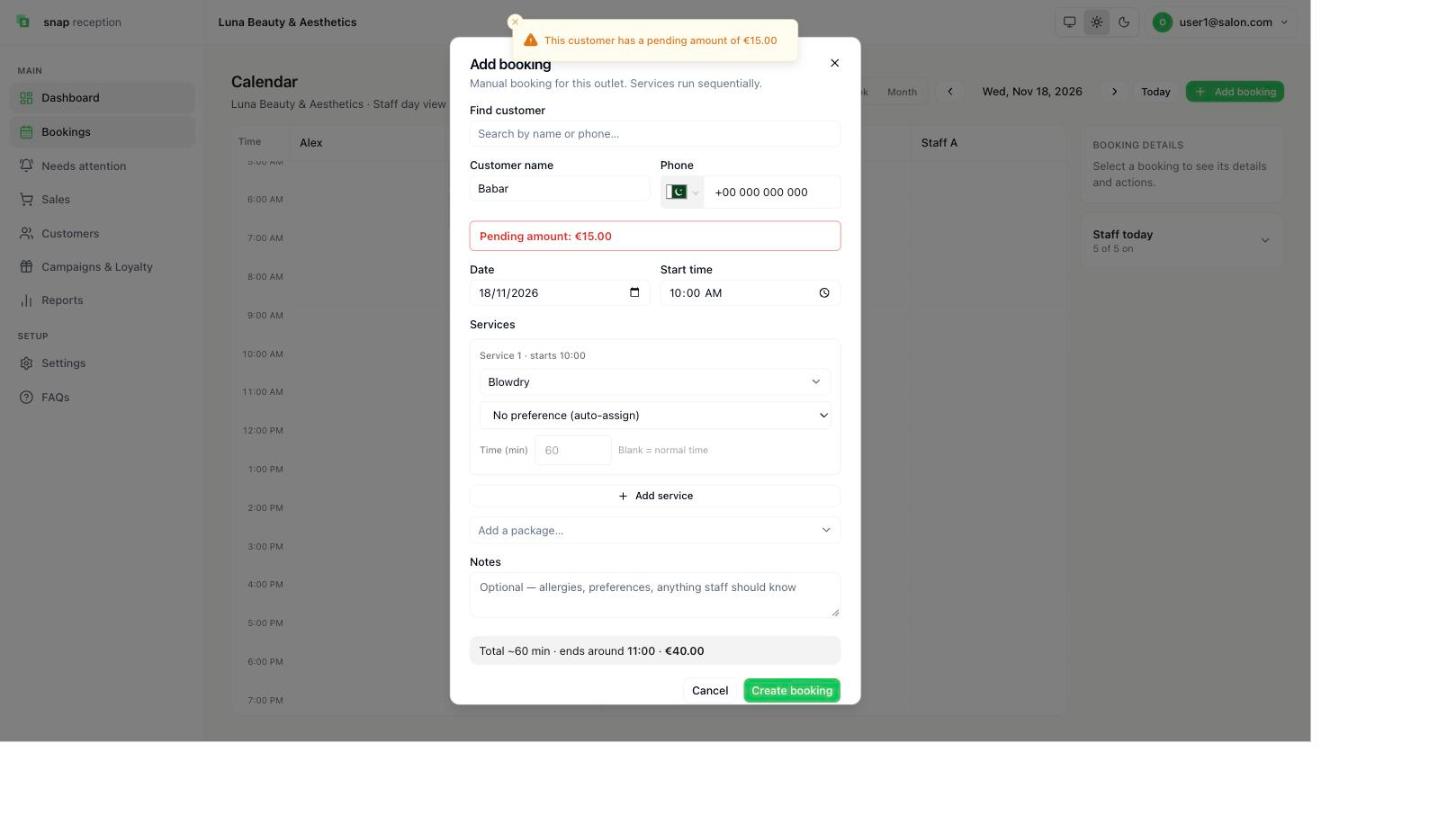
- Press Add booking (calendar) or New Booking (dashboard or a customer's profile).
- In Find customer, type a name or phone number and pick the person from the list. Their name and phone fill in. For someone new, type Customer name and Phone (the phone field has a country selector).
- Check the Date and Start time.
- Under Services, press Select service… and search for the service. Choose a staff member, or leave No preference (auto-assign).
- To change how long one service takes, type minutes in Time (min) (leave it blank for the normal time).
- Press Add service for another service, or Add a package… to add a package.
- Add Notes if you like (allergies, preferences, anything staff should know).
- Check the line at the bottom (for example "Total ~60 min · ends around 11:00 · €40.00") and press Create booking. A Booking created message appears.
What it does
Creates the booking and checks that the time is free for that person, inside opening hours, not on a closure day and not during their time off. The dialog says "Services run sequentially": the second service starts when the first one ends.
Use cases
A phone call, a walk-in who wants to book their next visit, or re-booking a regular.
Workaround for
Writing the appointment in a diary and later typing it into a calendar.
Side effects
- A booking added at the desk starts as Pending (shown amber). Confirm it, or finish it, from the booking's panel.
- If the customer owes money on credit, a red "Pending amount" warning appears in the dialog, with a short notice at the top, so you can mention it before they leave.
- No alert is created, because your own team made it.
- If the time is blocked only by "soft" reasons (outside hours, a closure day, staff time off, the staff member not working then), the screen shows a warning. A user with the Overbook permission can continue by giving a reason (required, up to 300 characters). The reason is stored in the booking's audit log. Anyone without that permission sees the warning and cannot continue.
- Overbooking staff who already have a booking at that time also needs the Overbook permission and a confirmation.
- A customer who has a package gets the package price on a package booking made from the calendar.
Limits and gotchas
- Overbooking is always a conscious choice; the system never overbooks on its own.
- Services in one booking run one after another by default. A booking can also hold services that run in parallel with their own start times (see section 5).
Change a booking: Reschedule, Done, No-show, Cancel
How to do it
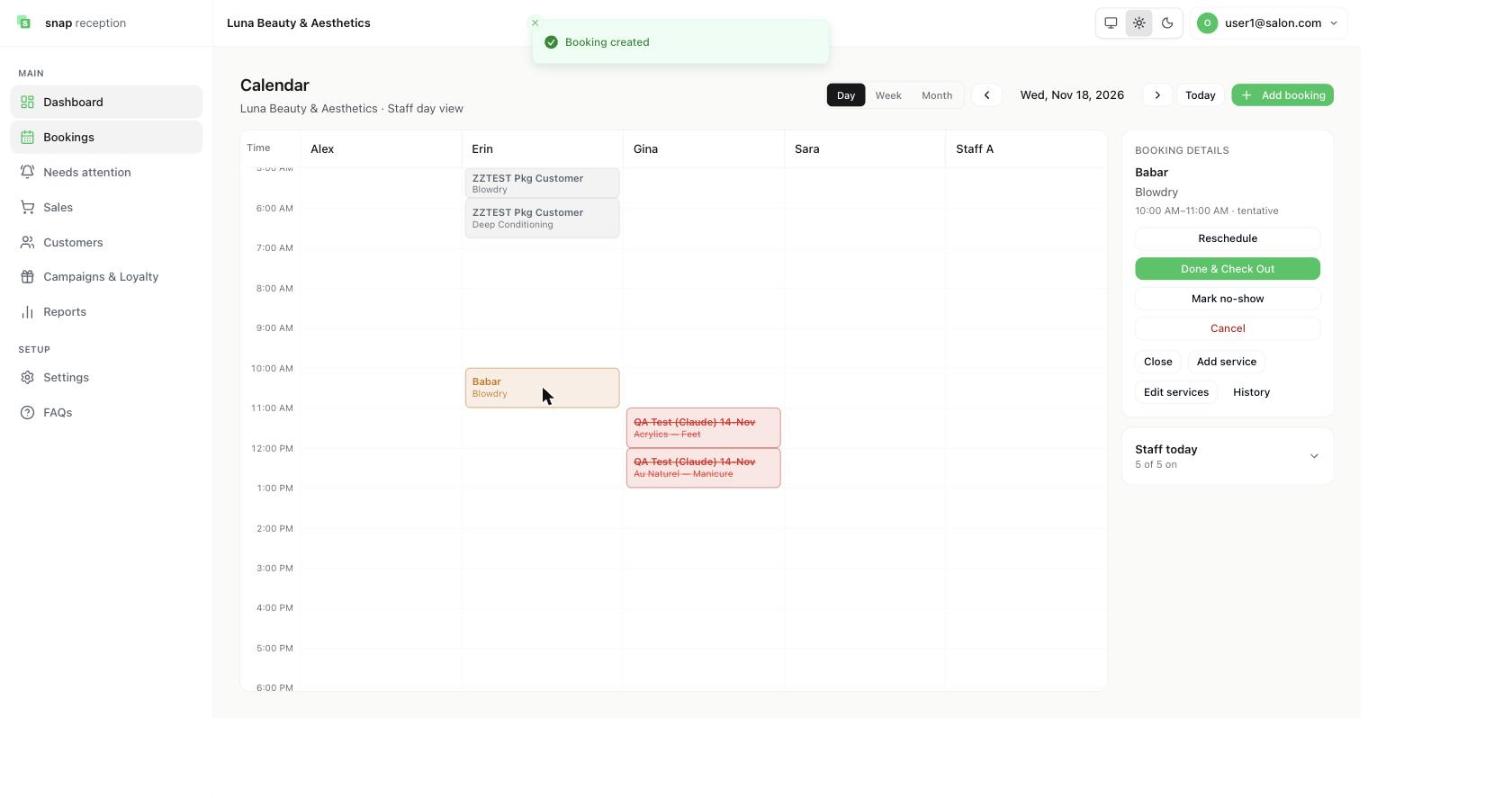
- Click the booking on the calendar. Booking details opens on the right with the customer, the service, the time and the status (for example "10:00 AM–11:00 AM · tentative").
- Choose an action: Reschedule, Done & Check Out (the green button), Mark no-show or Cancel. Smaller buttons: Close (hide the panel), Add service, Edit services and History.
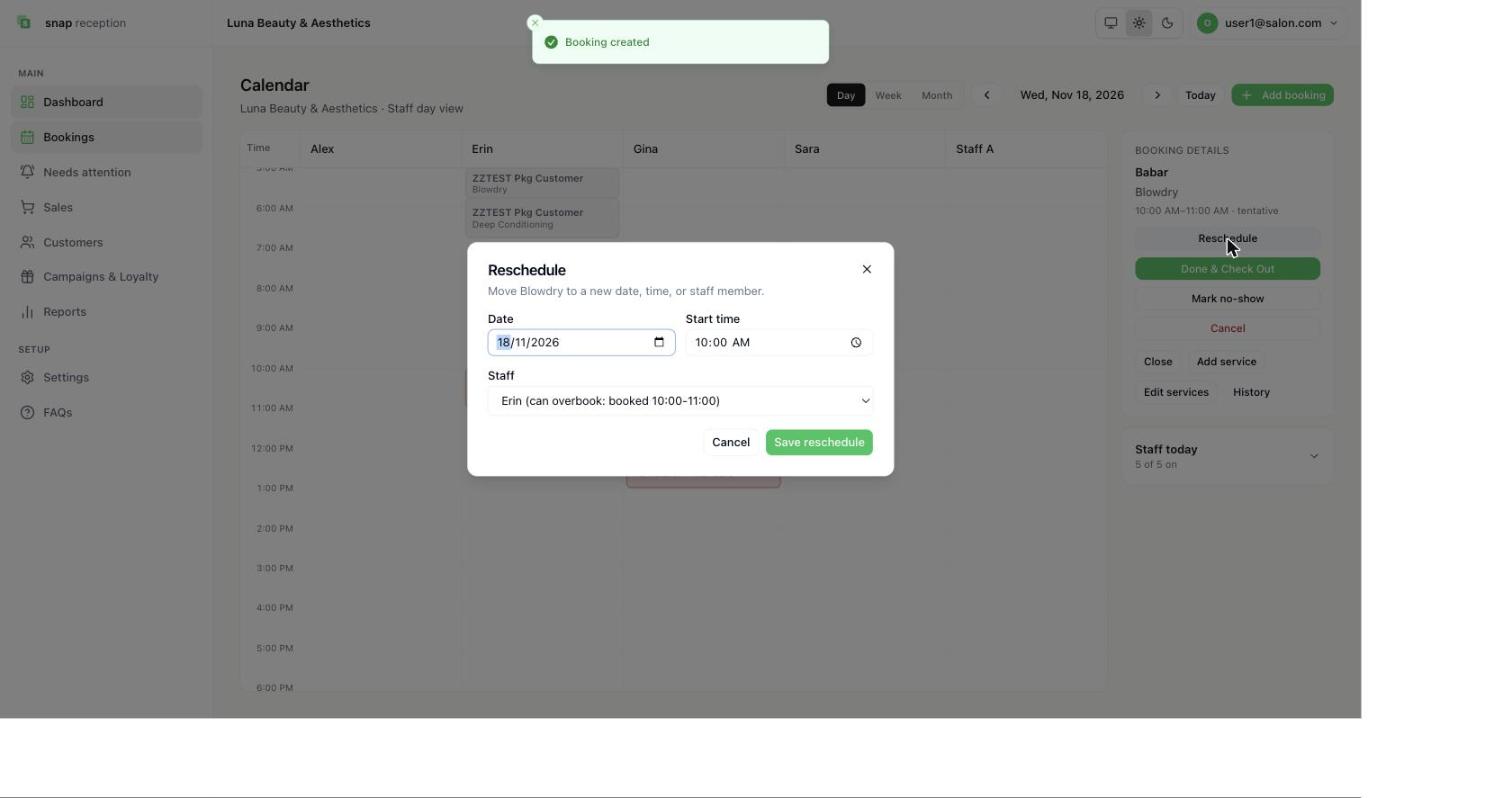
- For Reschedule, pick the new date, start time and staff member and press Save reschedule. The staff list shows who is already booked at that time and whether you can overbook them, for example "Erin (can overbook: booked 10:00-11:00)".
- History lists what happened to the booking and when, for example "created · manual" with the time.
What it does
Moves or ends the booking and updates its status. The change is recorded in the booking's History.
Done & Check Out marks the booking Completed and opens Sales with the customer, the service and the staff member already filled in, ready to take payment.
Use cases
A customer asks to move; the customer doesn't show; the customer cancels by phone.
Workaround for
Deleting the old entry and re-typing a new one, or crossing it off the paper diary.
Side effects
- Reschedule checks availability again. If another booking holds that time for the staff member the move is refused.
- Marking no-show or cancelled takes the booking out of checkout. A booking that is cancelled or no-show cannot be billed.
- Done & Check Out marks the booking done and takes you straight to Sales to bill it. After the sale, the visit shows as Billed on the customer's profile.
- A change a customer makes themselves (on WhatsApp) alerts the outlet; a change your team makes does not.
Limits and gotchas
- Nothing is deleted. Cancelled bookings stay visible (struck through) and in History.
Edit services inside a booking (add, remove, replace, own times)
How to do it
- Open the booking and choose Add service, or edit its services.
- Add a service, remove one, or replace one with another.
- Optionally type a different time for a single service (between 5 and 720 minutes).
- Save.
What it does
You send the full list of services you want, in order. The system works out the new times for every line, shifting later services when an earlier one gets longer or shorter.
Use cases
"Can I add a blow-dry?", changing a colour to a cut, or a long treatment that needs more than the standard time.
Workaround for
Cancelling the booking and creating a new one, losing the history.
Side effects
- Removed or replaced services are kept, marked cancelled, never deleted. A replaced service keeps a link to what replaced it.
- Later services in the booking shift to follow the new durations.
- Only bookings that are Pending, Confirmed or In Service can be edited.
- A service whose time you typed by hand is marked on the calendar so everyone can see it was set manually.
- Needs the Edit services in a booking permission.
Limits and gotchas
- Staff are never silently swapped. If a change would clash, you are asked first.
Bookings that arrive by WhatsApp
What it does
When a customer books through the AI receptionist and the slot is free, the booking is saved and the customer is told straight away. What happens next depends on one outlet setting, auto-confirm (on by default).
| Auto-confirm | The booking is | The customer is told | You get |
|---|---|---|---|
| On | Confirmed | "Your booking is confirmed", with service, date, time and staff | A WhatsApp: "New Booking, confirmed automatically", with a way to cancel by replying NO |
| Off | Pending | Their time is held and the team will confirm | A WhatsApp: "New Booking Request"; reply YES to confirm or NO to reject |
Side effects
- A booking alert appears on every open dashboard and rings until someone presses acknowledge. Alerts cover a new booking, a booking changed by the customer, and a booking cancelled by the customer.
- Replying YES to a booking that is already confirmed changes nothing and does not message the customer again.
- If the AI cannot complete a booking (a special request, something only a person can decide), it tells the customer "I'll consult the team" and hands the chat to your team. It appears under Needs attention.
Limits and gotchas
- The AI path never overrides opening hours or time off. Only a person at the desk can, with a reason.
Needs attention
How to do it
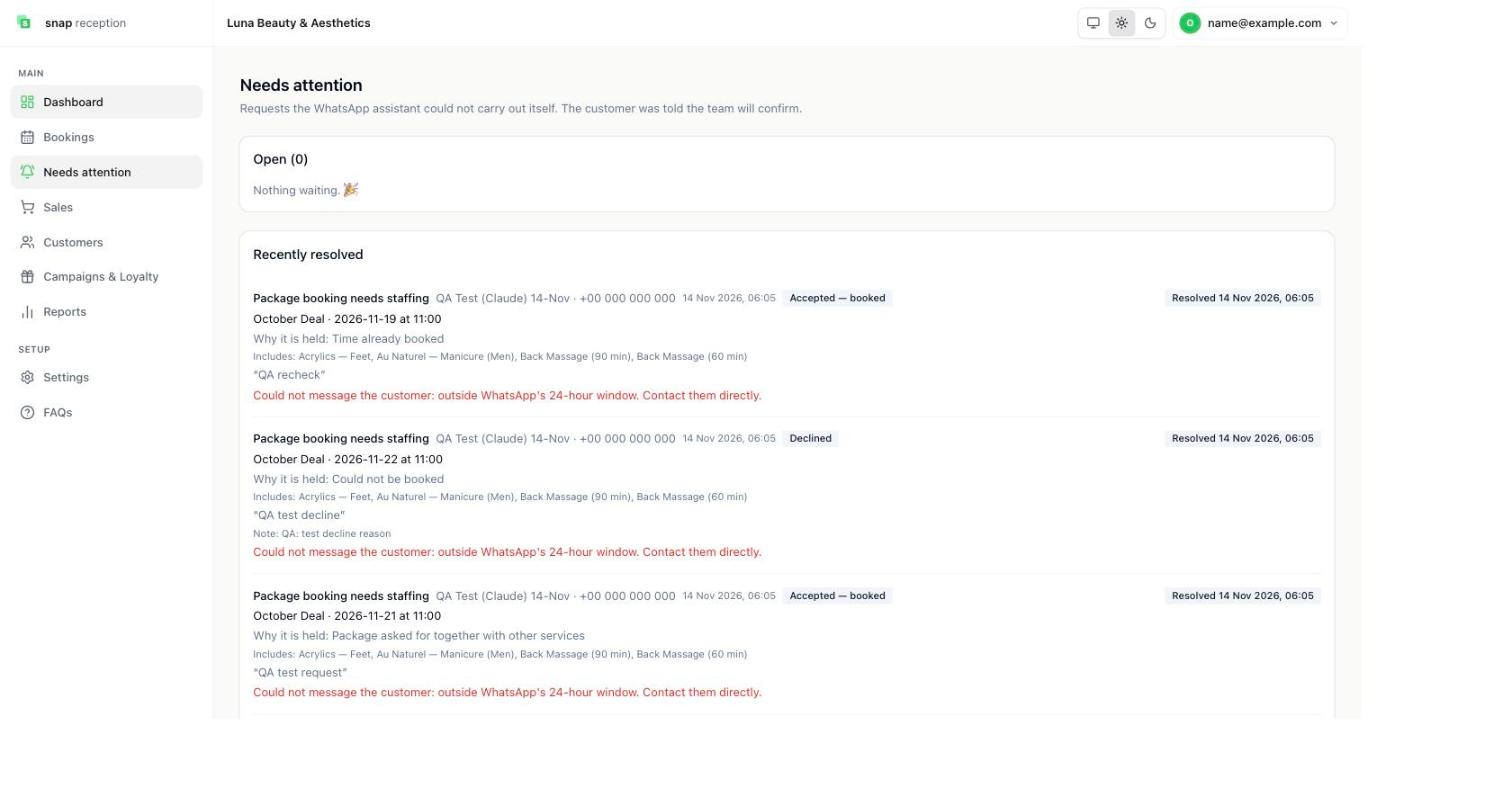
- Open Needs attention. The number badge on the menu shows how many are open.
- Read the request, the reason it was held, and what the customer asked for.
- Decide what to do with each request. Once handled, it moves to Recently resolved with your decision, for example Accepted — booked or Declined.
What it does
Lists requests the WhatsApp assistant could not carry out by itself, with the reason ("Time already booked", "Package asked for together with other services") and the customer's own words. Recently resolved keeps a history showing what you decided.
Use cases
A package request that needs staffing, a busy person the customer specifically asked for, or something unusual.
Workaround for
Scrolling through WhatsApp chats looking for "can someone call me back?".
Side effects
- The customer is told the team will confirm.
- After you decide, the system tries to message the customer. If they last wrote more than 24 hours ago, WhatsApp will not let it send and the item shows a red line: "Could not message the customer: outside WhatsApp's 24-hour window. Contact them directly." You then call or message them yourself.
Limits and gotchas
- Check the red line. A "booked" status does not mean the customer has been told.