
Snap Reception records every sale, refund and cash movement so your end-of-day numbers match what is in the till. Snap Reception does not take or move money. When you add a payment, you are recording how the customer paid: cash handed over, a card tapped on your own terminal, or a bank transfer.
Who can use it: anyone with the Sales permission can ring up sales. Refunds and the Cash Drawer are separate permissions that the Owner switches on per role in Settings → Team & Access.
Quick Sale
How to do it
- Make sure your day is open (see section 4). Nothing can be rung up until it is.
- Open Sales in the left menu.
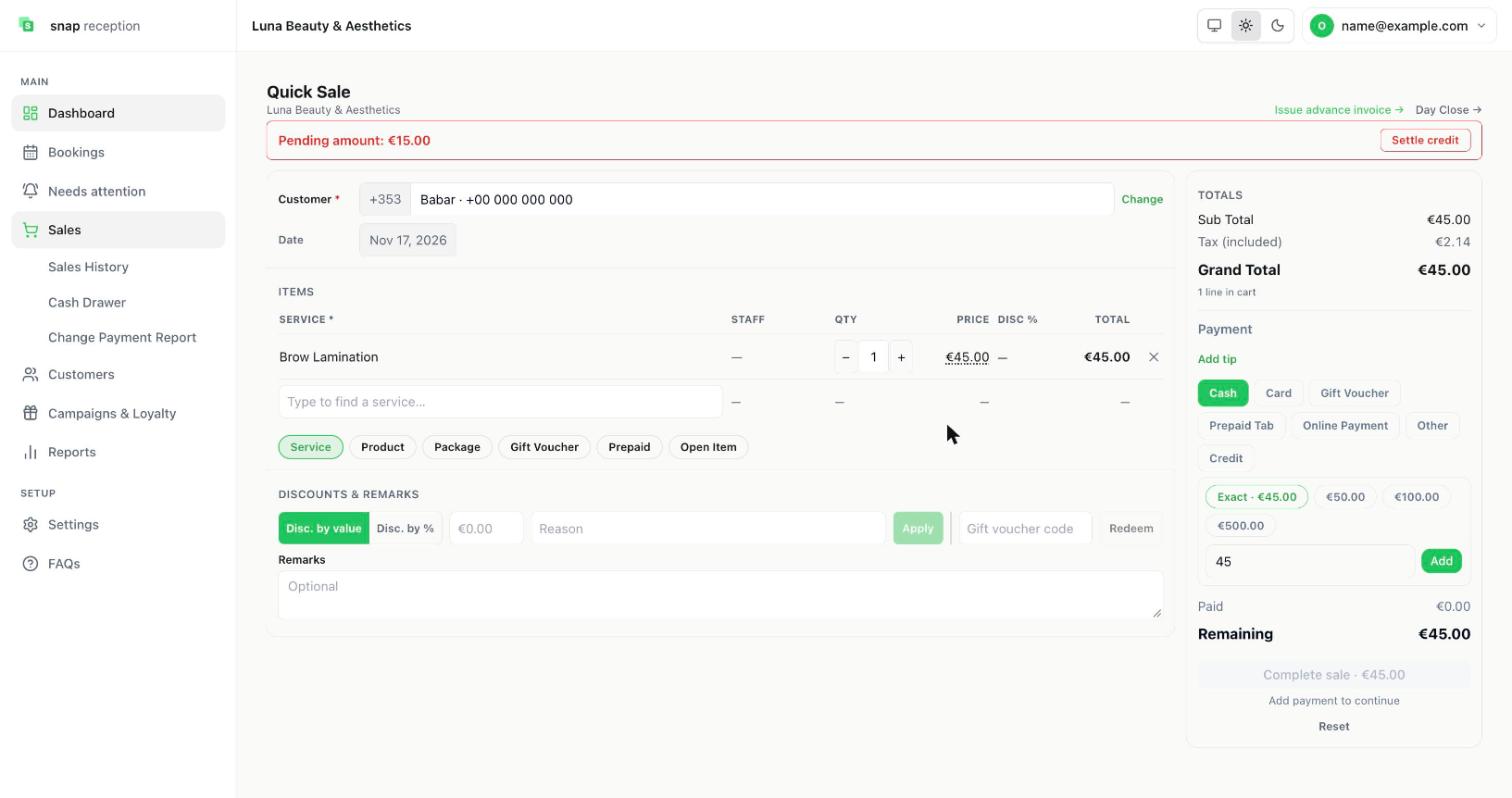
- Choose the Customer. Type a name or phone number, or press Change to pick someone else.
- Add items. Type in Type to find a service…, or use the buttons under the item list: Service, Product, Package, Gift Voucher, Prepaid, Open Item.
- Pick the Staff member who did the work on each service line, and change Qty or Price if needed.
- Add a discount if needed: Disc. by value or Disc. by %, a Reason, then Apply. A gift voucher code goes in the Gift voucher code box and Redeem.
- On the right, choose how the customer paid: Cash, Card, Gift Voucher, Prepaid Tab, Online Payment, Other or Credit. You can add more than one payment to split the bill.
- Type the amount (or tap a quick amount such as Exact) and press Add. The payment appears in the list (for example "Cash €40.00") and Paid updates. Use the red × to remove it.
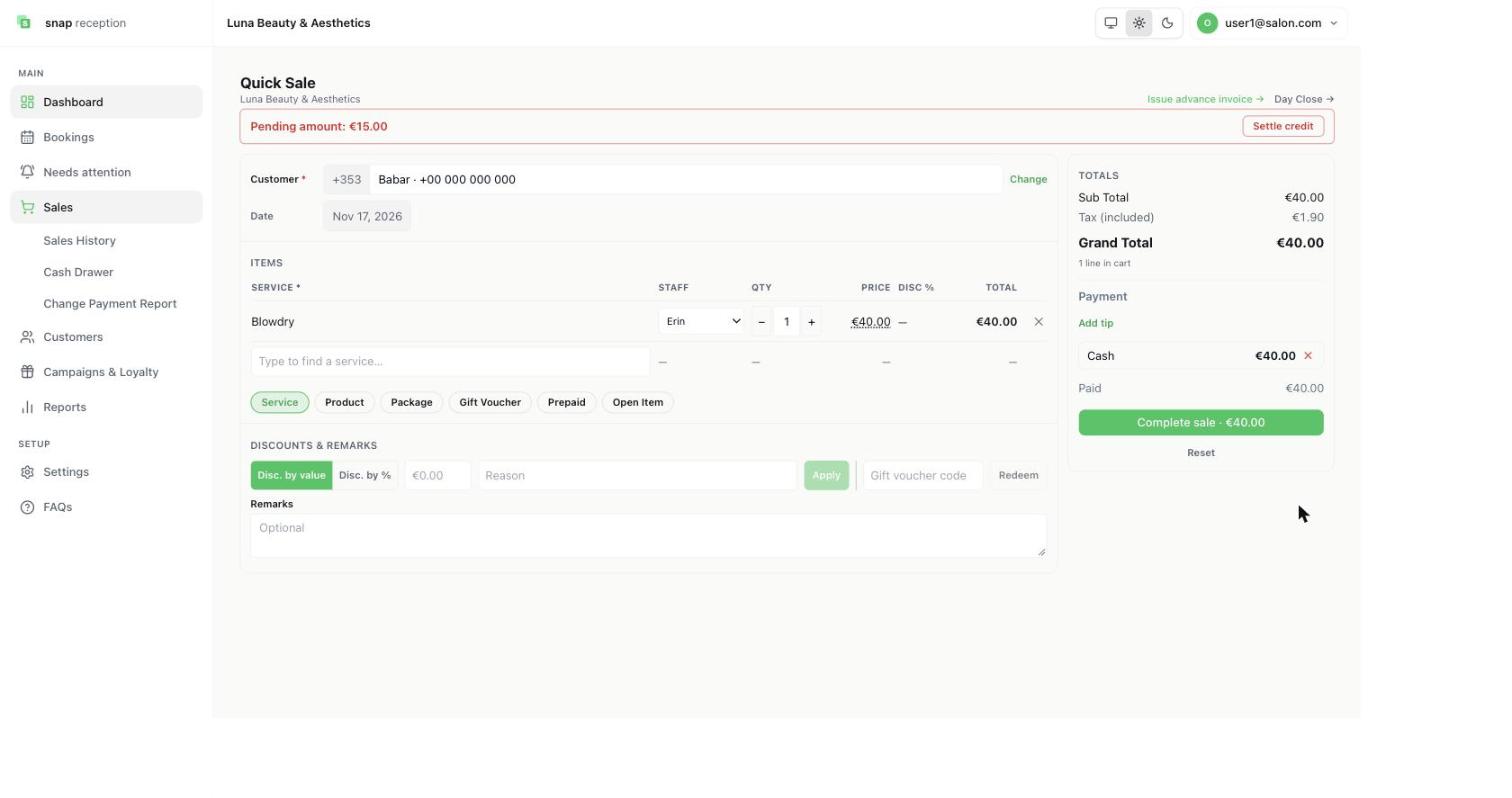
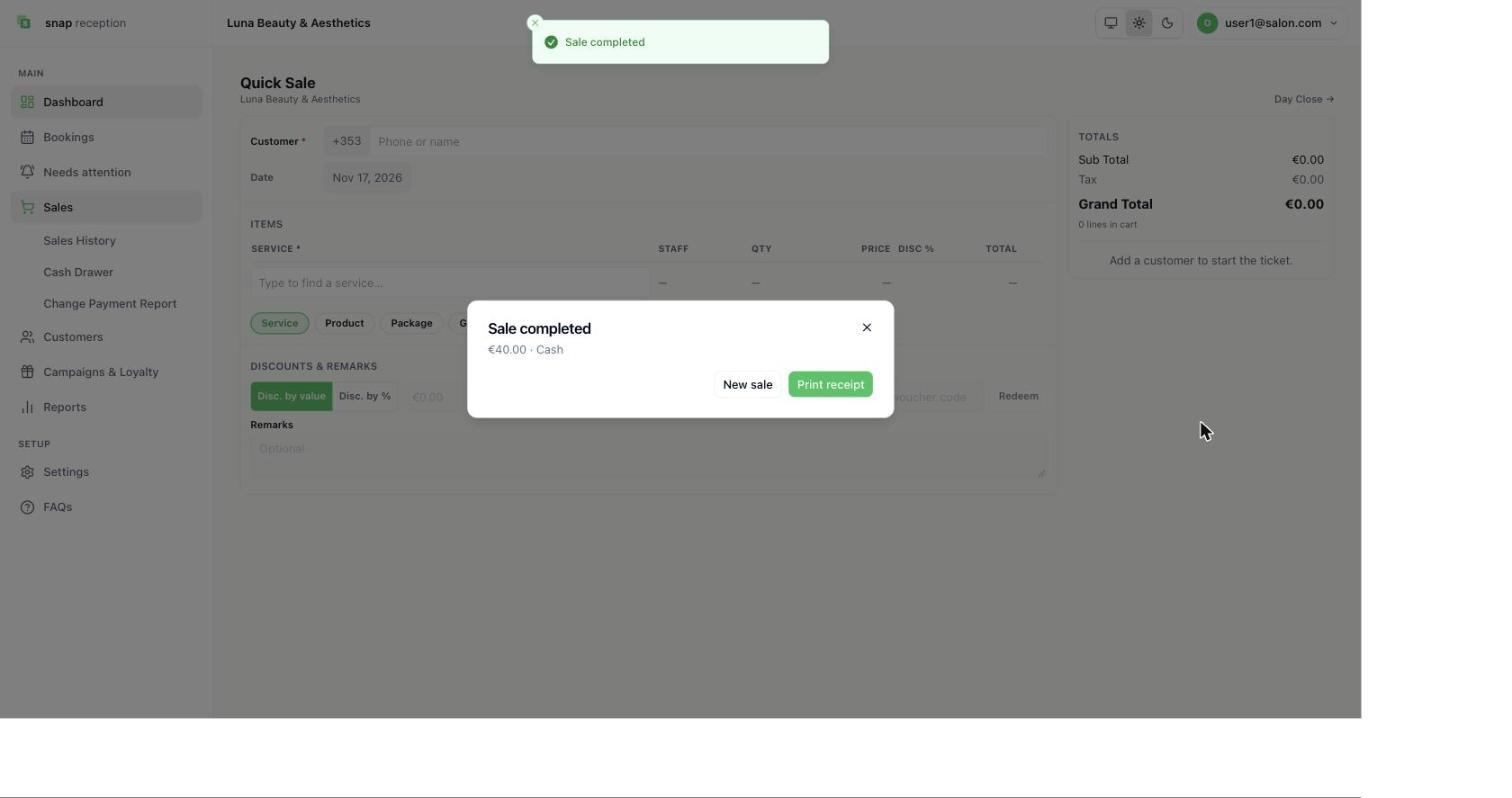
- When Remaining reaches 0, press Complete sale. A Sale completed box shows the amount and payment method, with New sale and Print receipt.
What it does
- Turns the cart into a completed sale with a receipt number.
- When you press Done & Check Out on a booking in the calendar, the booking is marked completed and Sales opens with the customer, service, staff and price already filled in. You only add the payment.
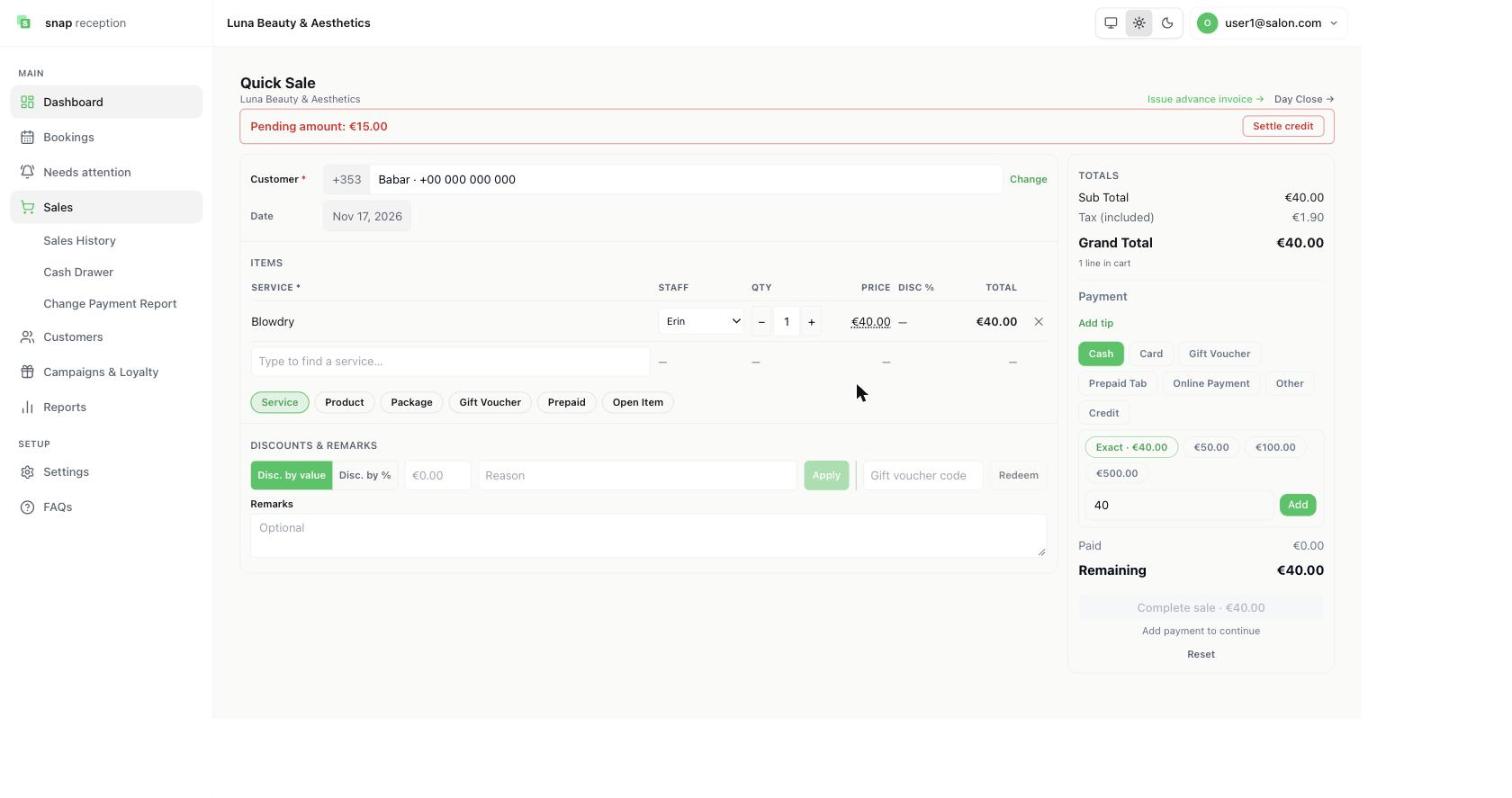
- Works out tax. The screen shows Tax (included) inside the grand total.
- The sale can only be completed once the payments add up to the total (a zero-value sale can be completed with no payment).
Use cases
- A walk-in customer with no booking.
- Selling a retail product or a gift voucher.
- A customer paying part cash and part card.
- Billing a finished appointment (the booking's services come across as lines).
Workaround for
Writing the sale in a notebook or spreadsheet and adding up the till at night.
Side effects
- Cash goes to the cash drawer. A cash payment is recorded in the drawer and shows under Cash sales on the Cash Drawer screen (a €40 cash sale took the drawer from €100.00 to €140.00).
- The customer earns a loyalty stamp. After the €40 bill, the customer's loyalty moved from 3/10 to 4/10, and their visit history shows the service as Billed. One stamp per customer per day, and only for a bill with a real service line.
- A "Pending amount" notice appears when the chosen customer owes money on credit, and a banner shows the balance with a Settle credit button.
- Gift vouchers sold in the cart are created when the sale completes, and are not counted as revenue.
- Credit (pay later) creates an amount the customer owes you. The system re-checks the customer's credit limit at the moment you press Complete.
- A completed sale cannot be cancelled or deleted. The only way to correct it is a refund (section 3).
Limits and gotchas
- A day left open for more than 24 hours blocks new sales. Close the day first (section 4).
- If Require a customer is on in Sales settings, you cannot complete a sale without a customer. If Require staff on every service line is on, every service line needs a staff member.
- Price changes at billing can only raise a price, never lower it. To charge less, use a discount.
- The screen remembers a half-finished cart. Use Reset to start again.
Sales History
How to do it
- Open Sales → Sales History.
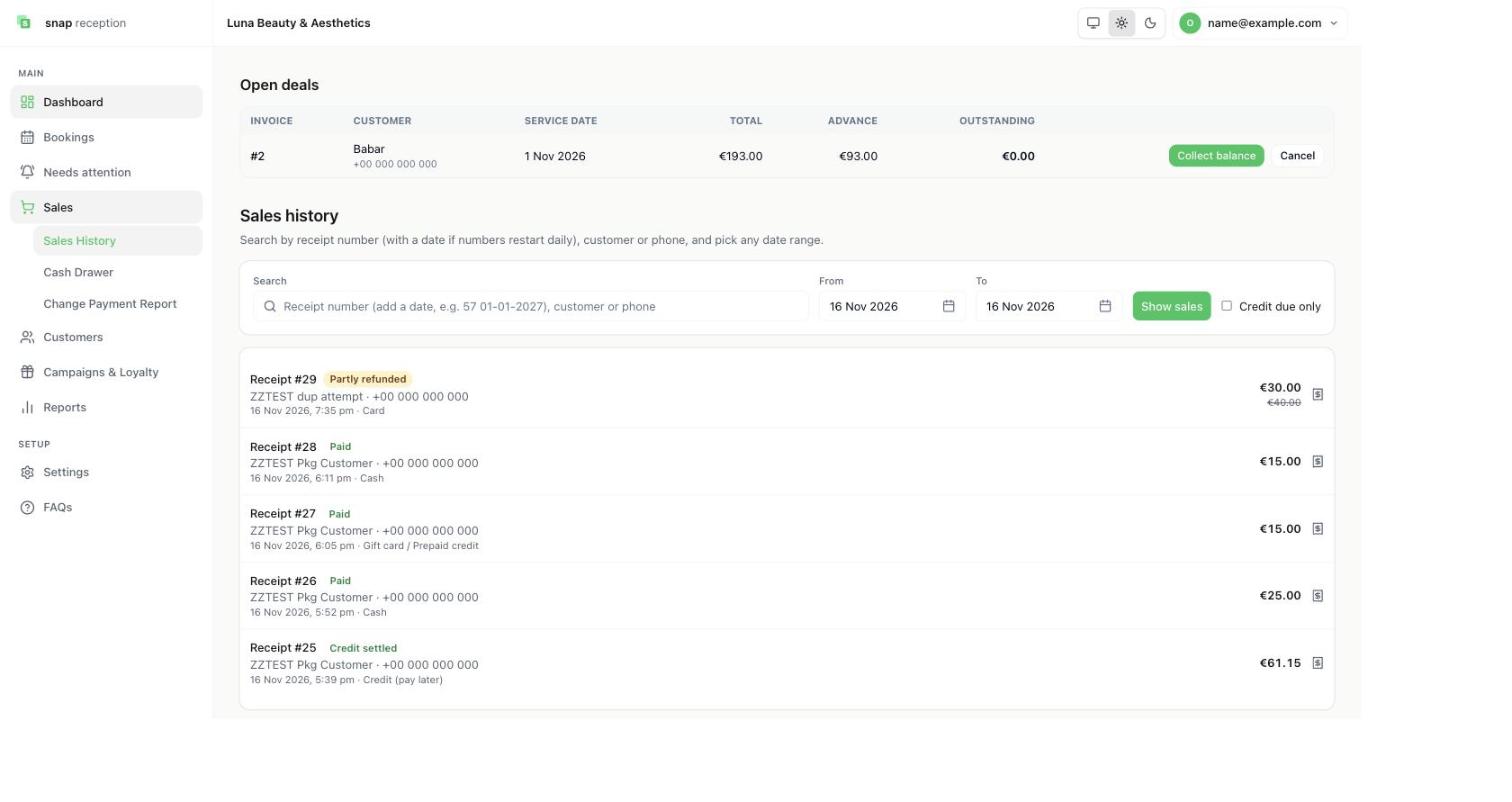
- Search by receipt number (add a date if your numbers restart daily), customer name or phone. Pick a From and To date and press Show sales. Tick Credit due only to see unpaid credit.
- Click a receipt number to open the receipt, with its items, payments and refund status.
What it does
Lists every sale in the date range with its receipt number, customer, payment method, status and total. Status badges include Paid, Partly refunded and Credit settled. A struck-through amount shows the original total before a refund. Open deals at the top lists advance invoices that still have a balance, with Collect balance and Cancel buttons.
Use cases
Answering "did this customer pay?", finding a receipt for a refund, checking what is still owed.
Workaround for
Searching old paper receipts or WhatsApp screenshots.
Side effects
None. Viewing does not change anything.
Limits and gotchas
- The default range is a single day, so widen it to find older sales.
- Cancel on an open deal is a real action (see Advance invoices), so do not press it just to look.
Refunds (one line at a time)
How to do it
- Open the sale from Sales History. The receipt page lists each item with a Refund button, and a summary of Original total, Refunded and Net.
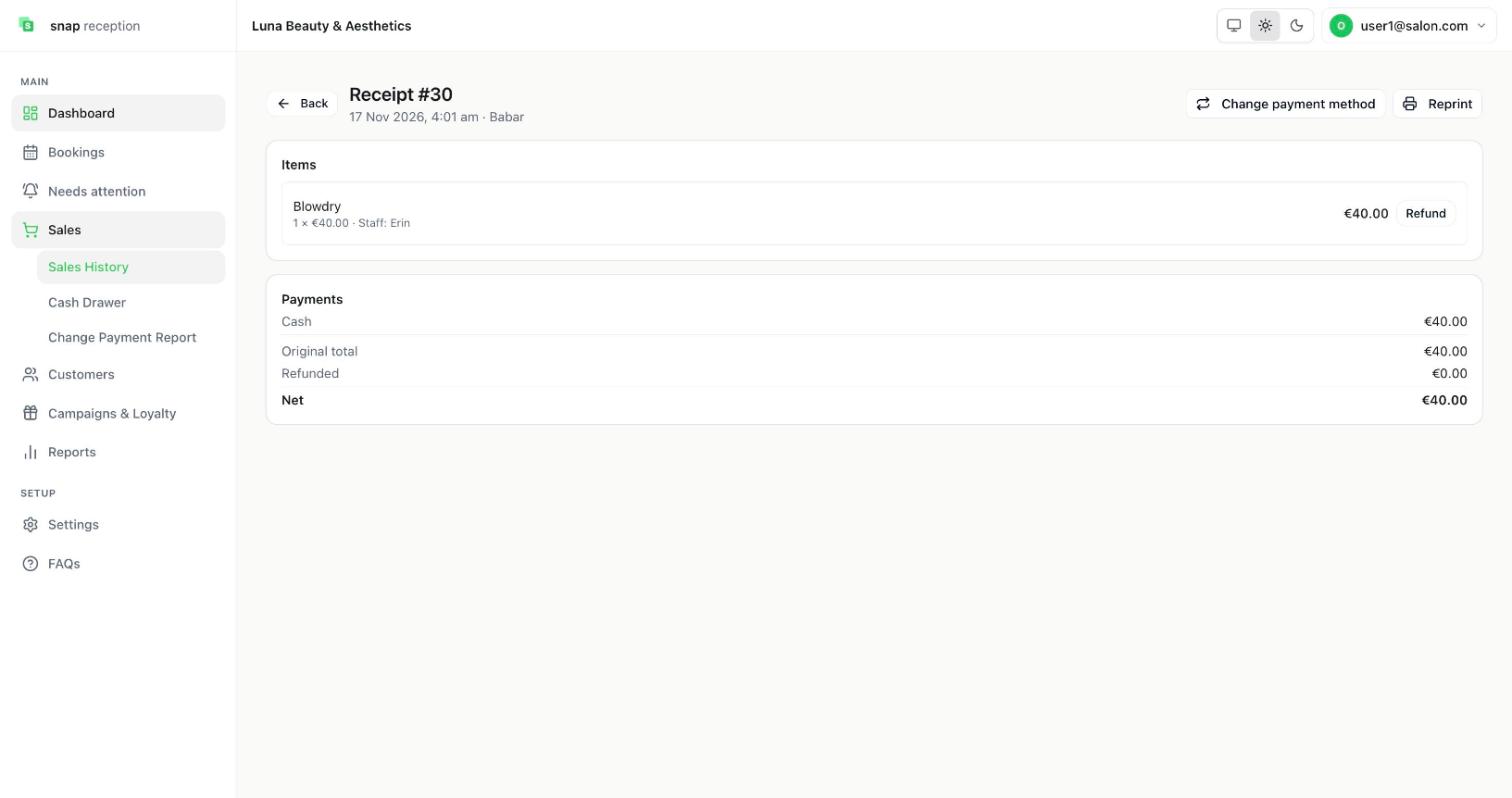
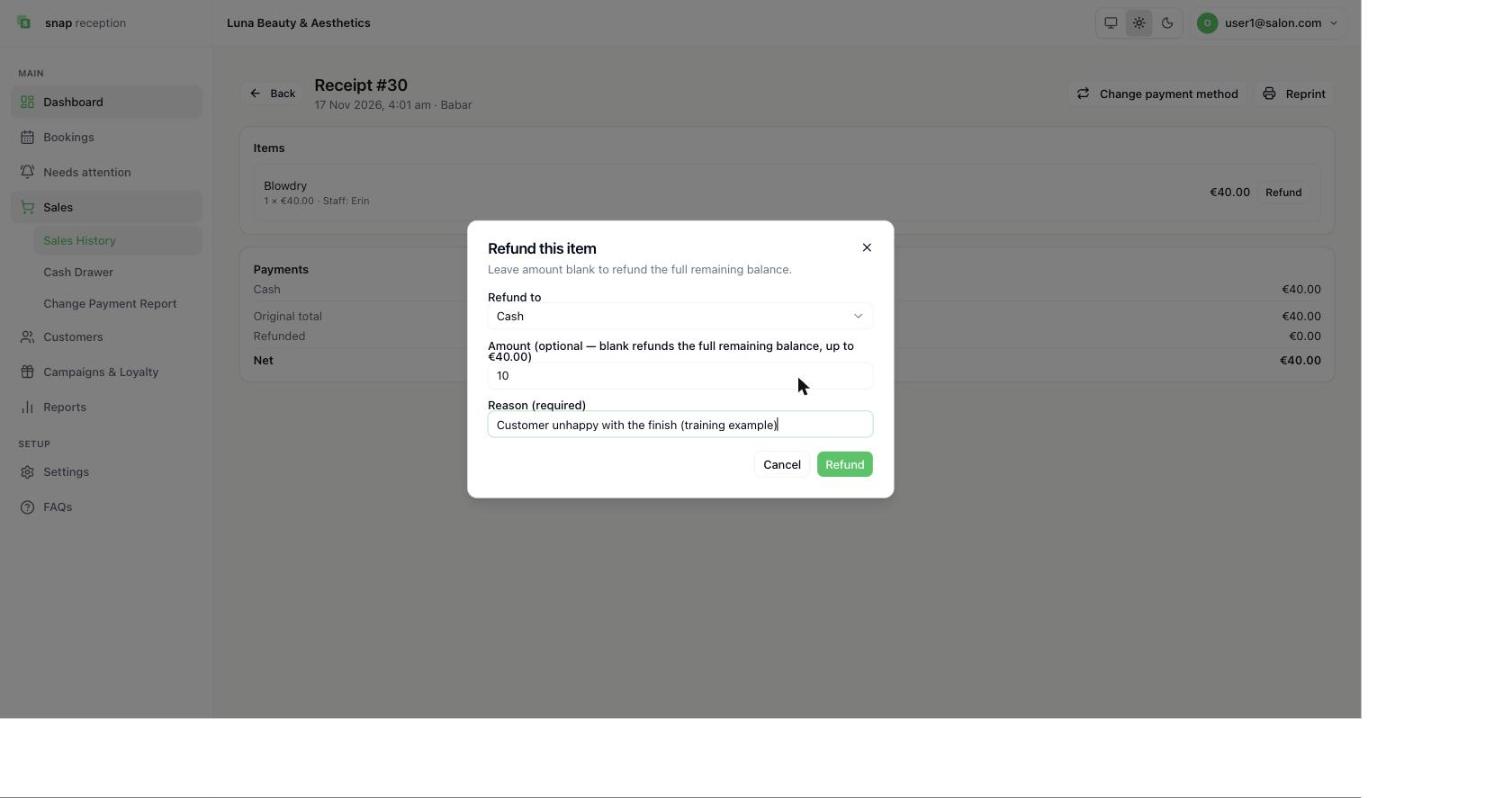
- Press Refund next to the item. The box says "Leave amount blank to refund the full remaining balance."
- Choose Refund to (for example Cash), optionally type an Amount (up to the line total), and type the Reason, which is required. Press Refund.
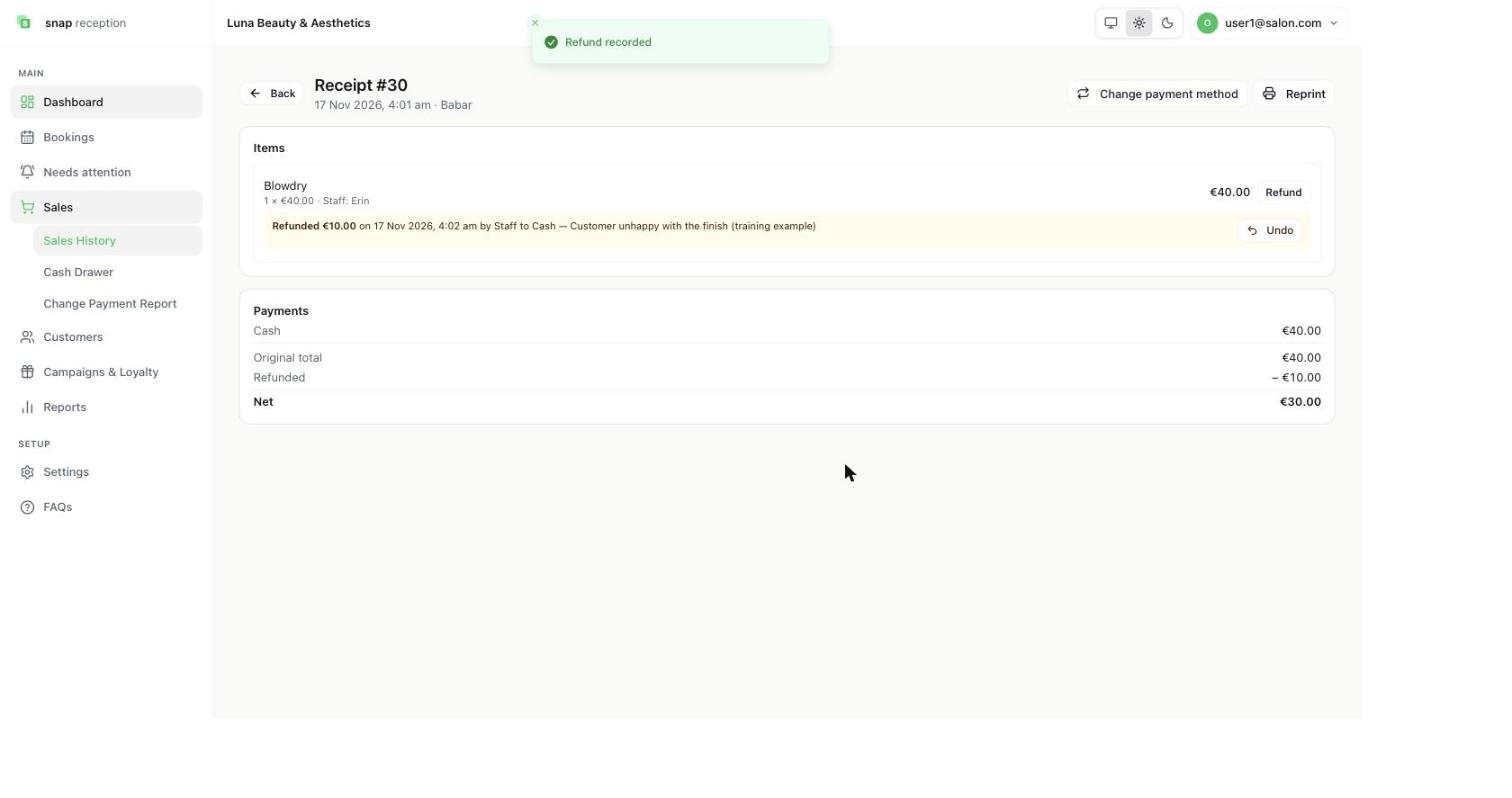
- A Refund recorded message appears. The line shows "Refunded €10.00 … to Cash — (your reason)", the totals update (Refunded −€10.00, Net €30.00), and an Undo button appears.
- Change payment method (top right) fixes a wrong payment method on the sale, and Reprint prints the receipt again.
What it does
Records a refund against one line of a completed sale. A line locks once it is fully refunded; the other lines stay refundable on their own.
Use cases
A service went wrong, a product is returned, or one item on a mixed bill was charged by mistake.
Workaround for
Deleting or editing the original sale, which Snap Reception does not allow.
Side effects
- A reason is required for every refund.
- Cash refunds come out of today's open cash drawer, even if the original sale was yesterday. With no open day, the refund is blocked with "open the day first". The cash refund can't be more than the cash that sale actually received.
- Card, bank transfer and other refunds never touch the cash drawer.
- Refunds appear in Reports → Sales under Refunds.
- A refund can be undone on the same business day only.
- Permission: the Refund permission (Owner-only by default).
Limits and gotchas
- A completed sale is never cancelled or removed from reports. Refund is the only correction.
- Snap Reception records the refund. It does not send the money back to the customer's card. You do that on your own terminal.
Cash Drawer and Day Close
How to do it
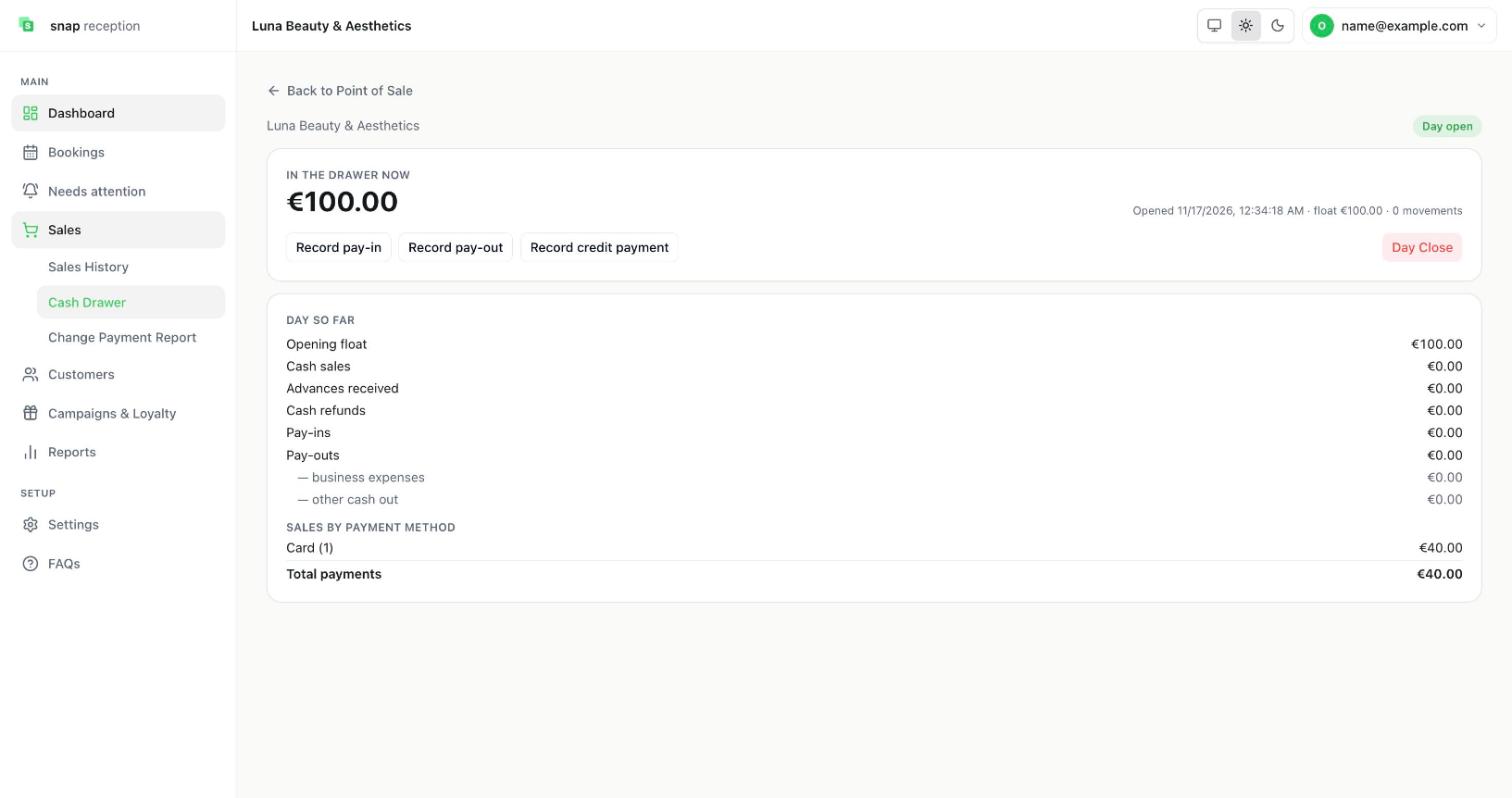
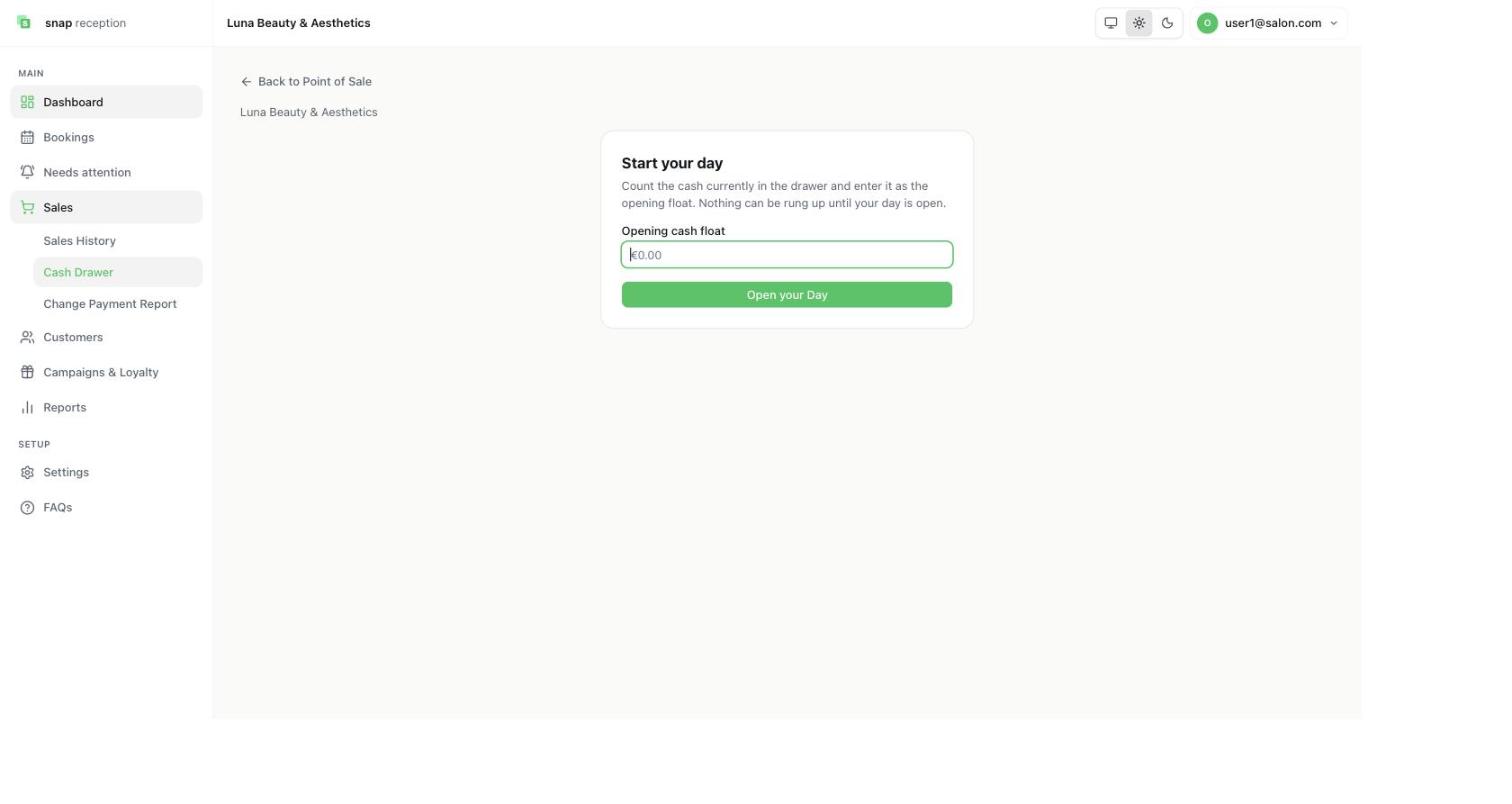
- Start your day. Open Sales → Cash Drawer. If the day is closed you see Start your day: count the cash in the drawer, enter it as the Opening cash float, and press Open your Day. Nothing can be rung up until your day is open.
- Once open, the badge top-right shows Day open, and In the drawer now shows the cash you should have.
- During the day, use Record pay-in (cash added), Record pay-out (cash taken out) and Record credit payment (a customer paying off credit in cash).
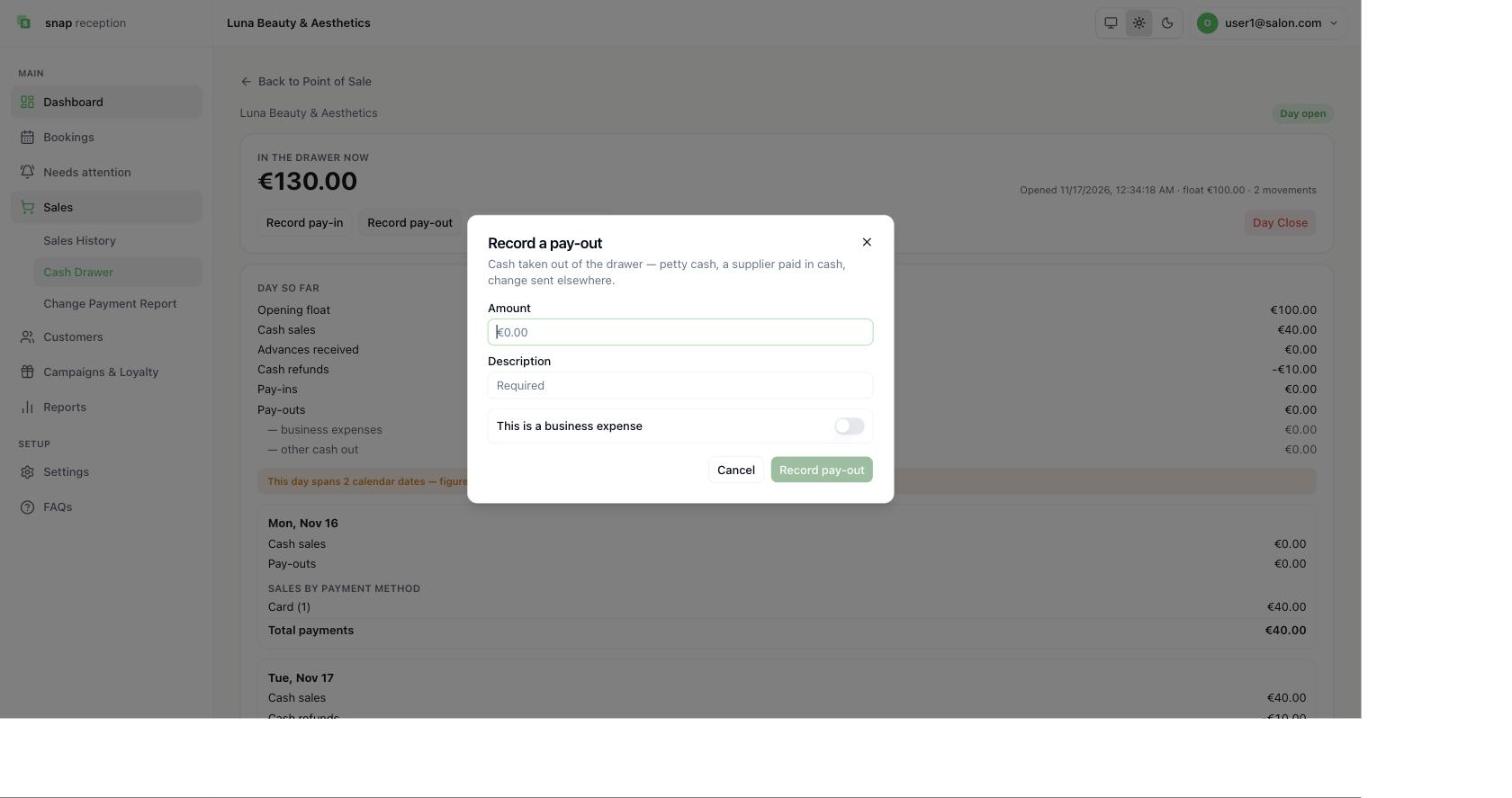
- A pay-out asks for an Amount, a required Description, and a This is a business expense switch. It is for petty cash, a supplier paid in cash, or change sent elsewhere.
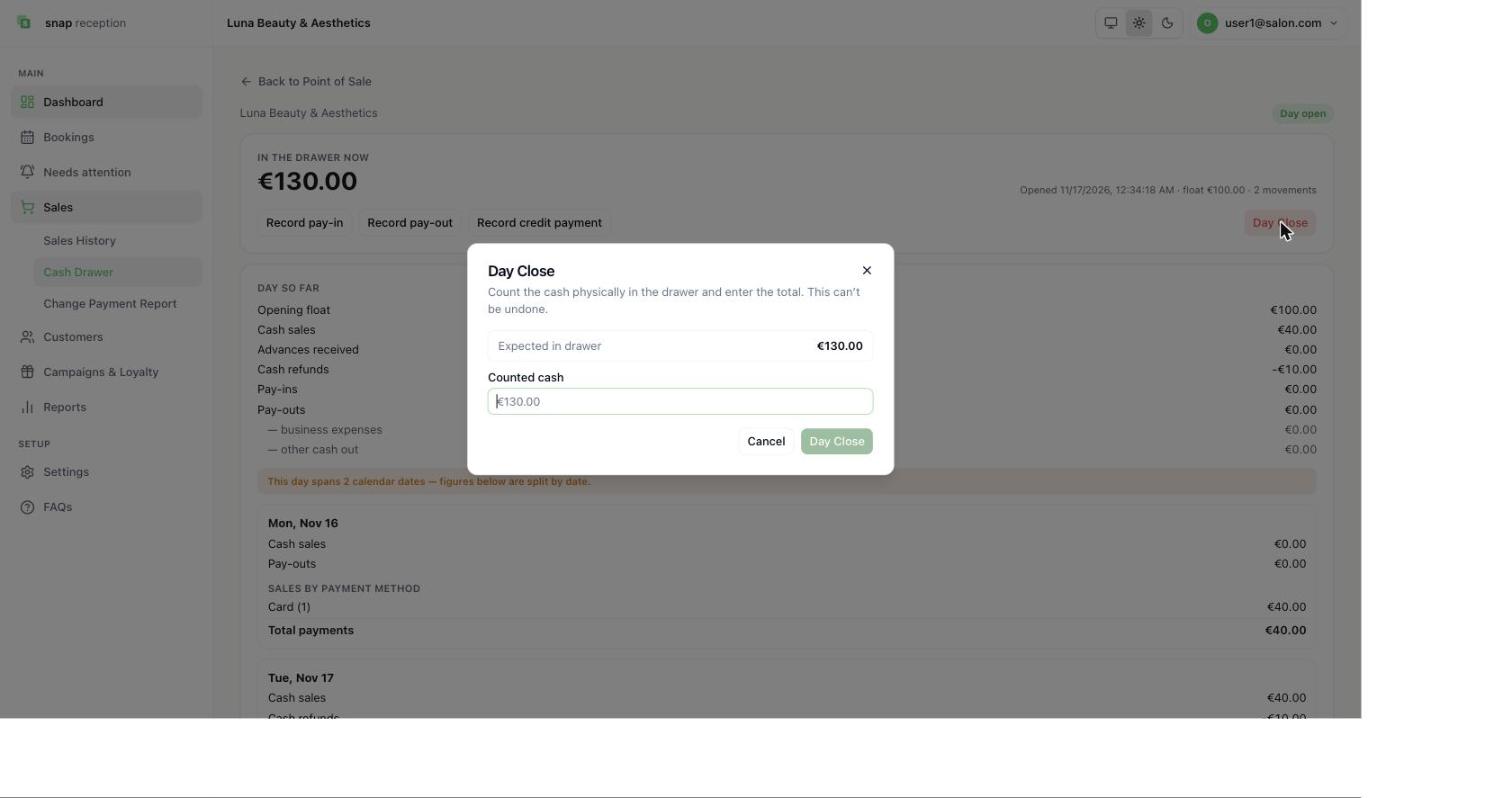
- At closing time press Day Close. The box shows Expected in drawer. Count the cash physically in the drawer, enter it under Counted cash, and press Day Close. The box warns: This can't be undone.
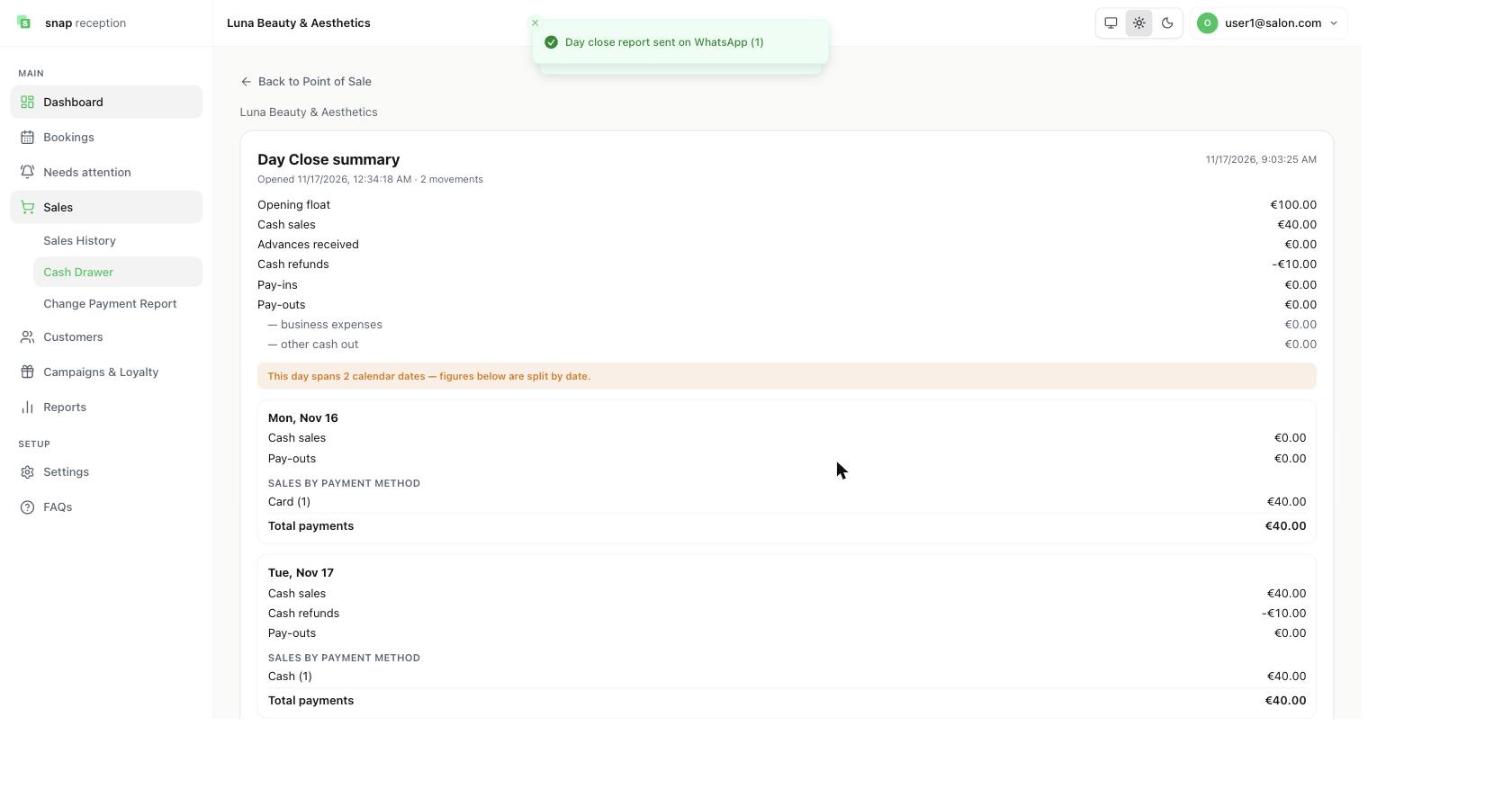
- A Day Close summary appears with the opening float, cash sales, advances, refunds, pay-ins, pay-outs and sales by payment method. A message tells you how many day-close reports were sent on WhatsApp, for example "Day close report sent on WhatsApp (1)".
What it does
Shows In the drawer now and a Day so far breakdown: opening float, cash sales, advances received, cash refunds, pay-ins, pay-outs (split into business expenses and other cash out), sales by payment method and total payments. On close it freezes the expected cash, records what you counted, and works out the difference (over or short).
Use cases
End-of-day cash-up; showing the owner exactly where the cash went; catching a till that is short.
Workaround for
Counting the till against a handwritten list.
Side effects
- A difference beyond the tolerance is flagged as an anomaly for follow-up.
- A day-close report is sent on WhatsApp to every active team member who has Send day close report switched on. It is best effort and never stops the day from closing.
- WhatsApp only delivers that free-text report to someone who has messaged your salon's number in the last 24 hours. Anyone else is listed as "not delivered" on the close screen.
- Permission: Cash Drawer (Owner-only by default).
Limits and gotchas
- Leave a day open for 24 hours or more and sales are blocked until you close it.
- The business day ends when you close the drawer, not at midnight.
Sales settings
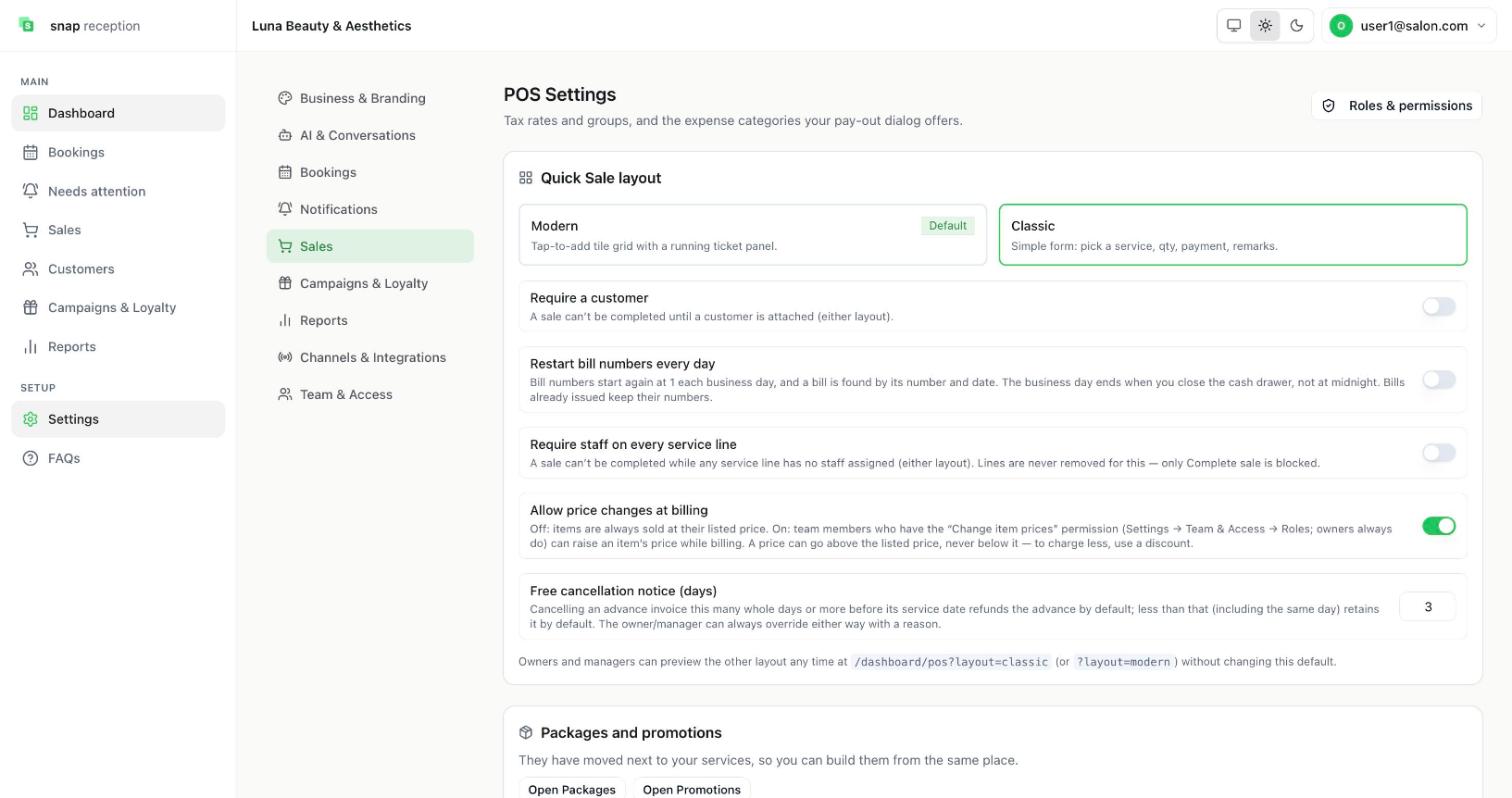
Find them in Settings → Sales.
| Setting | What it does |
|---|---|
| Quick Sale layout (Modern / Classic) | Modern is a tap-to-add tile grid with a running ticket. Classic is a simple form. |
| Require a customer | A sale can't be completed without a customer. |
| Restart bill numbers every day | Numbers start at 1 each business day; find a bill by number plus date. |
| Require staff on every service line | Blocks Complete sale while any service line has no staff. |
| Allow price changes at billing | Lets roles with Change item prices raise a price at billing, never below the listed price. |
| Free cancellation notice (days) | Cancelling an advance invoice this many days or more before the service date refunds the advance by default. |