
This page is the short version. Each step links to a full guide for the detail. Everything here was checked on the live app.
Morning: open the day (Cashier or Owner)
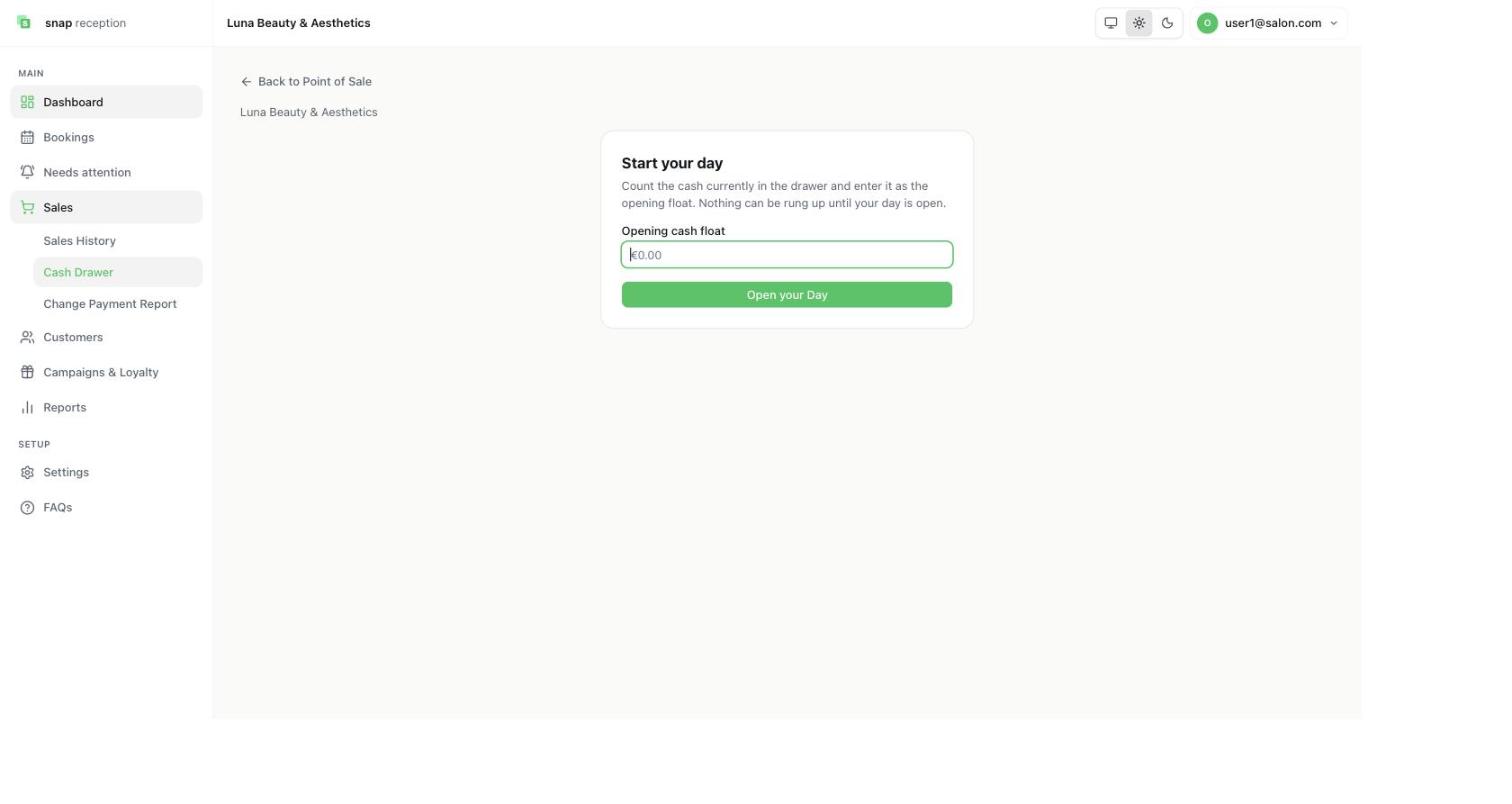
- Open Sales → Cash Drawer.
- On Start your day, count the cash in the drawer, enter it as the Opening cash float, and press Open your Day.
- Nothing can be rung up until the day is open.
Book an appointment (Receptionist)
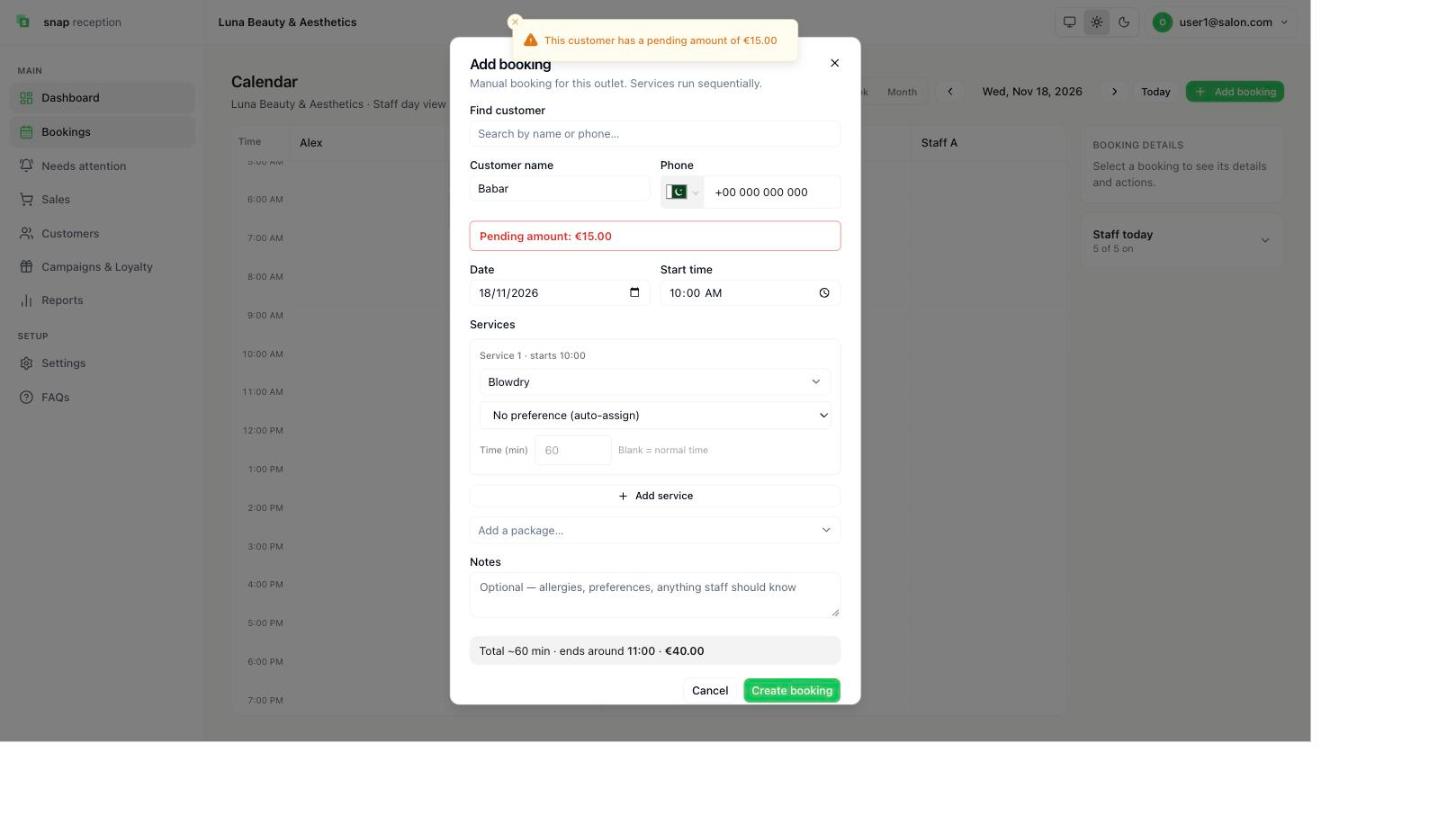
- Bookings → Add booking.
- Search the customer by name or phone, or type a new name and phone.
- Choose the date, start time, service and staff (or leave auto-assign). Press Create booking.
- A booking made at the desk starts as Pending.
Need to change it? Click the booking, then Reschedule, Mark no-show, Cancel, Add service or Edit services. These are on a computer or tablet.
Check out a customer (Cashier)
- Click the booking, then Done & Check Out. Sales opens with the customer, service and staff filled in.
- Choose how the customer paid (Cash, Card, Gift Voucher, Prepaid Tab, Online Payment, Other or Credit), type the amount and press Add.
- Press Complete sale. Choose Print receipt or New sale.
- For a customer without a booking, open Sales, pick the customer, add the service and staff, then pay the same way.
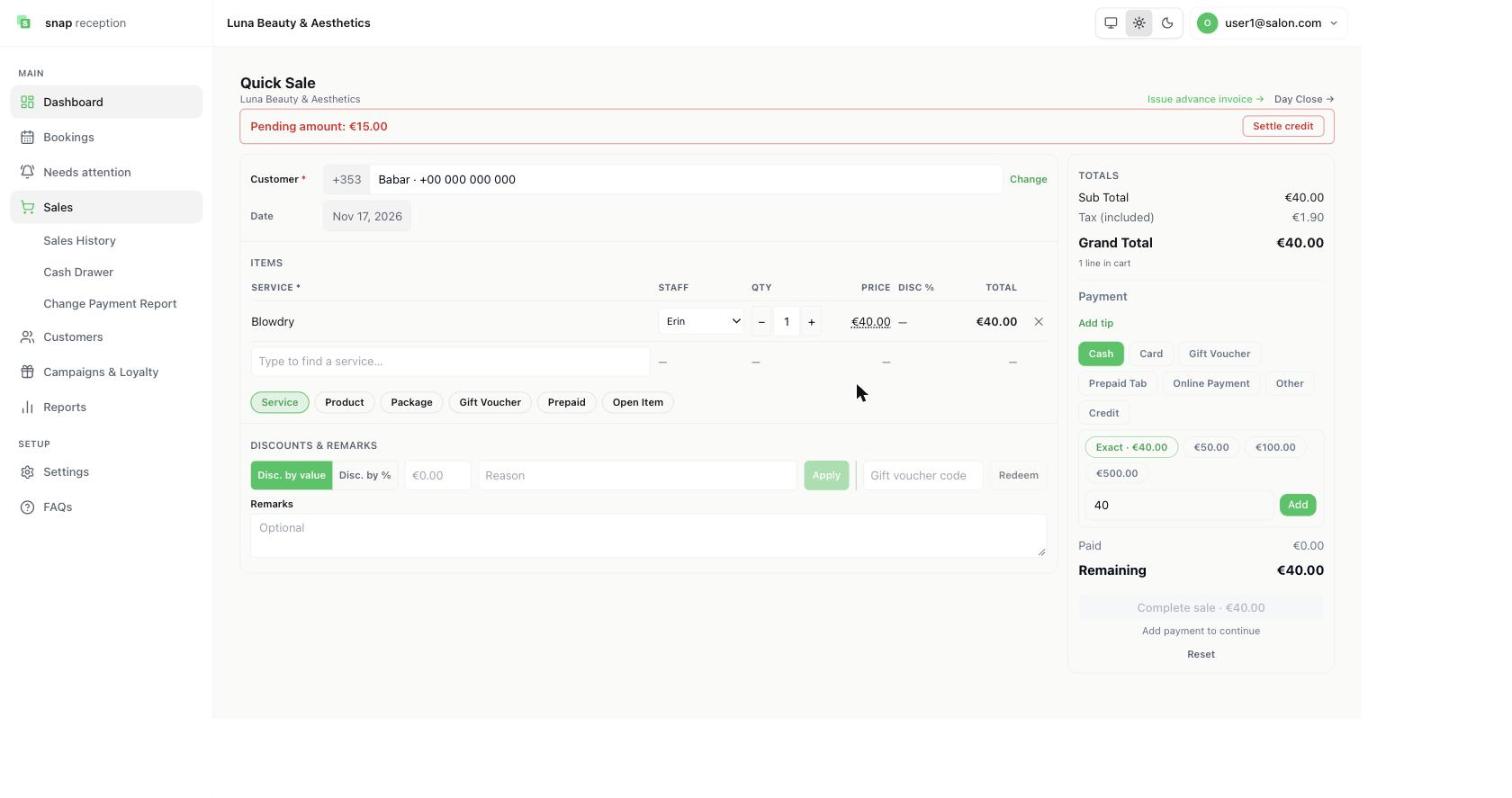
Note: Snap Reception records how the customer paid. It does not take the payment. Use your own card machine or bank app for that.
Something went wrong: refund (Owner, or Cashier if allowed)
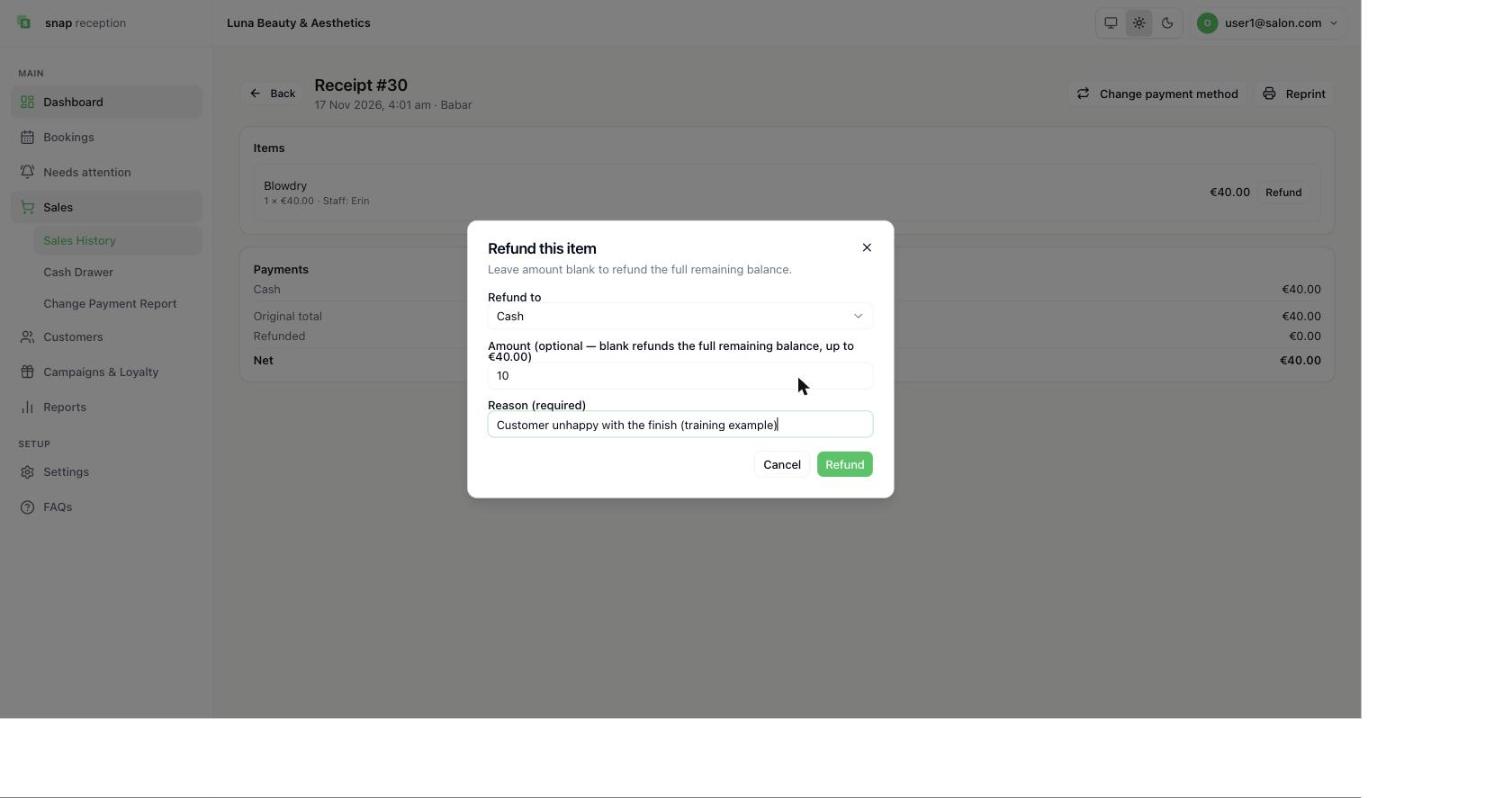
- Sales → Sales History, open the sale.
- Press Refund next to the item, choose where the money goes back, type the amount (leave empty for all) and a reason.
- Press Refund. To reverse it on the same day, press Undo.
Evening: close the day (Cashier or Owner)
- Sales → Cash Drawer. Record any pay-outs (petty cash, supplier paid in cash) first.
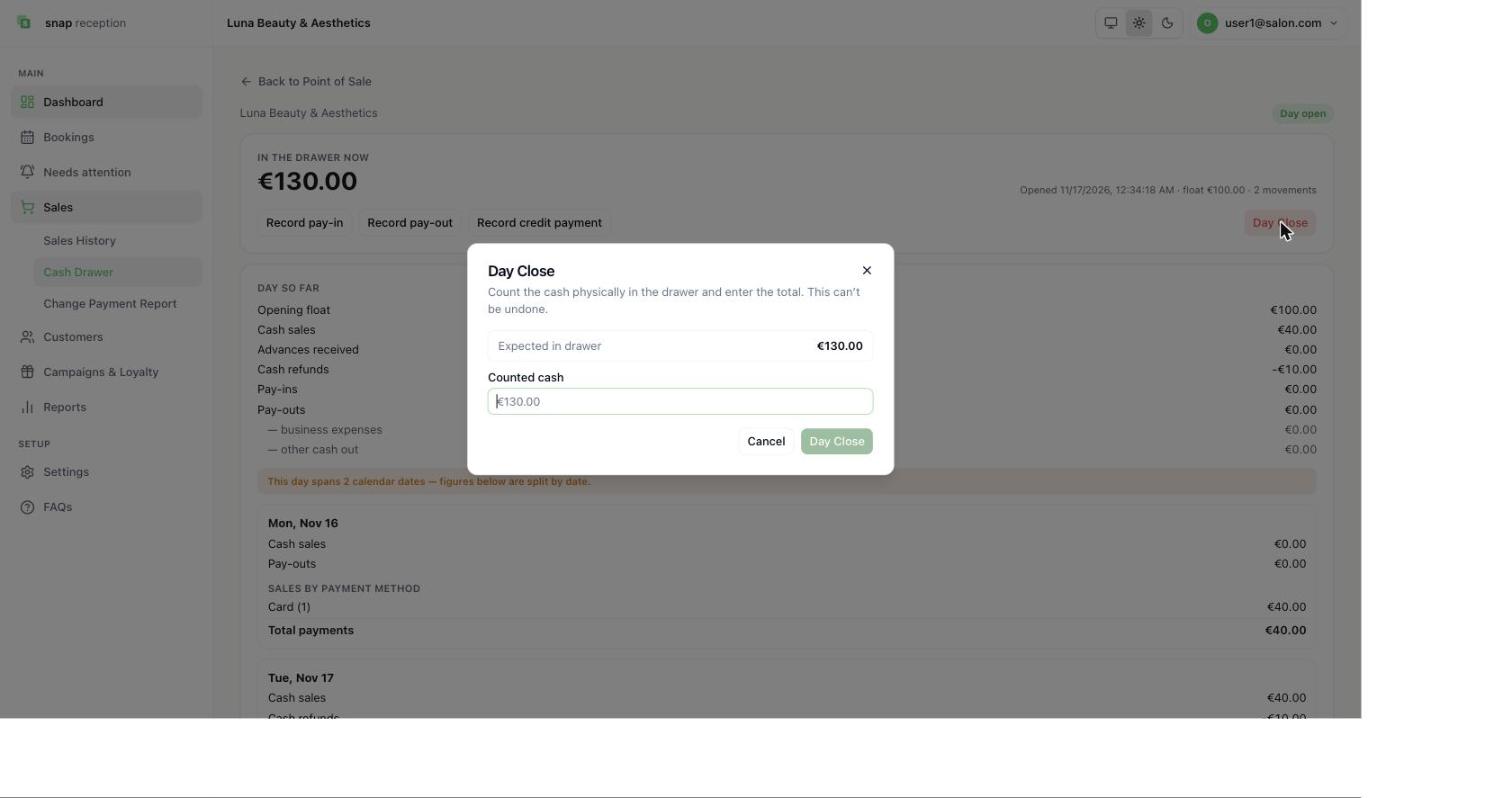
- Press Day Close, count the cash, type it under Counted cash and confirm. It can't be undone.
- Check the Day Close summary. A WhatsApp report goes to team members who have it switched on.
Who can do what
The Owner decides each person's access in Settings → Team & Access. If a button is missing for you, ask the Owner to check your role. See the Roles guide.