
Reports turn your sales, bookings, feedback and credit into numbers you can read in a minute. Settings control how the rest of Snap Reception behaves for your business.
Who can use it: the Reports permission opens Reports. Settings sections each have their own permission (see the table at the end).
Sales report
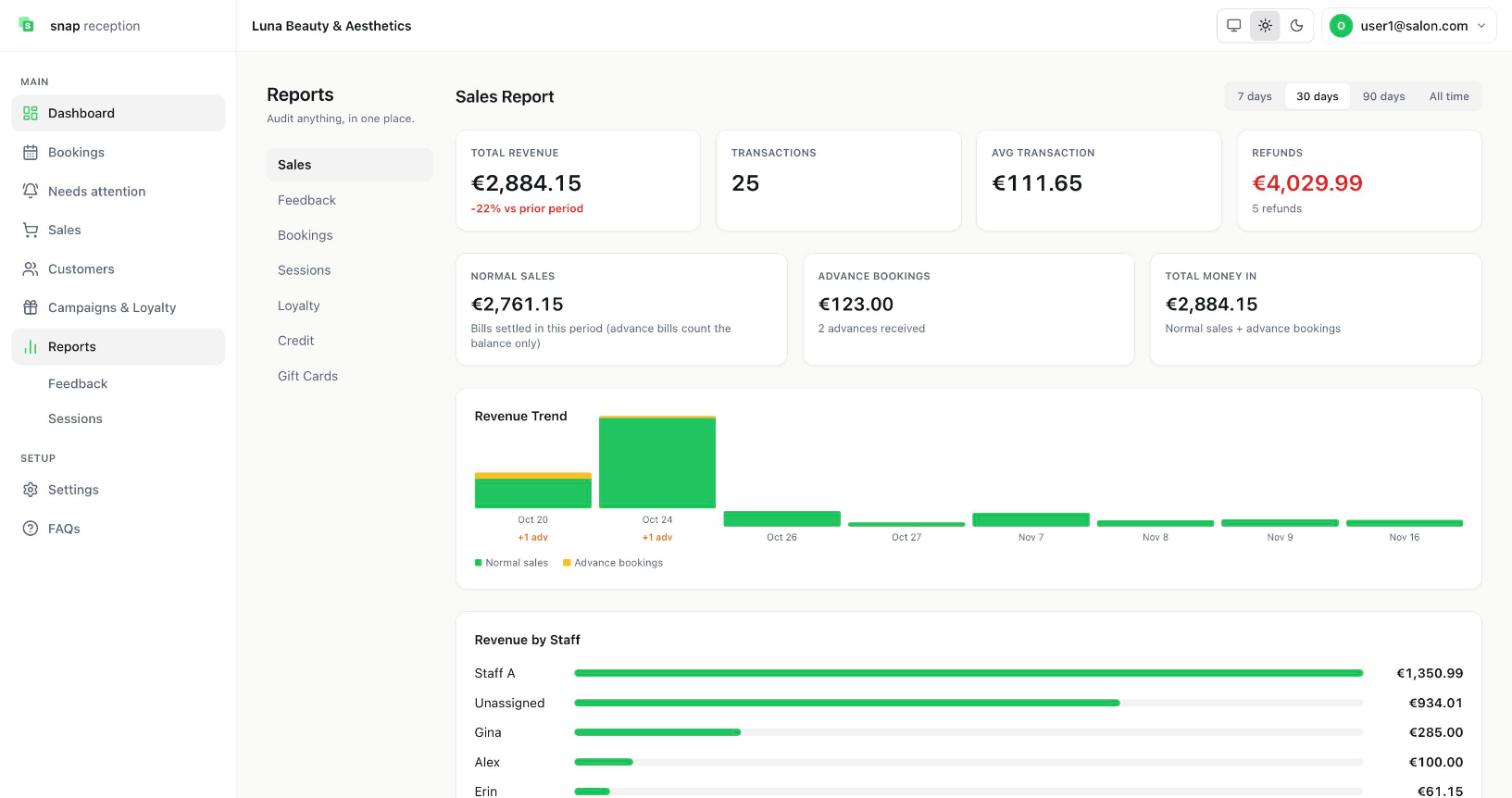
How to do it
- Open Reports. The left list shows seven categories: Sales, Feedback, Bookings, Sessions, Loyalty, Credit, Gift Cards. Sales opens first.
- Choose 7 days, 30 days, 90 days or All time at the top right.
- Scroll to see revenue by staff and more.
What it does
- Total revenue, with a comparison to the previous period, Transactions, Average transaction and Refunds (amount and count).
- Normal sales (bills settled in the period; for an advance bill, only the balance counts), Advance bookings (advances received), and Total money in (normal sales plus advances).
- Revenue Trend: a bar per day, with advance bookings in amber.
- Revenue by Staff, including an Unassigned bar for lines without a staff member.
Use cases
A weekly check on takings; comparing staff; spotting that refunds jumped; deciding if a slow month is normal.
Workaround for
Adding up receipts in a spreadsheet at month end.
Side effects
None from viewing.
Limits and gotchas
- Gift card sales and refunds are kept out of transactions, average ticket and refunds, so these numbers reflect services and products only.
- The Refunds card shows the total refunded and how many refunds there were in the period.
- The Unassigned bar means some service lines had no staff member. Turn on Require staff on every service line in Sales settings to avoid that.
- Amounts use your outlet's currency. Currencies with three decimals (such as OMR, BHD, KWD) are shown correctly, not rounded to two.
Credit report (money customers owe you)
How to do it
- Open Reports → Credit. It appears only for roles with the Credit reports permission.
- Use Credit Receivable to see who owes what, and Credit Management for each customer's opening balance, credit given and payments.
- Record a payment against a customer's credit from this screen (needs Receive payments).
What it does
Shows credit and payments separately from sales. Payments received are never counted as sales, so you don't count the same money twice.
Use cases
Chasing customers who haven't paid; a regular who pays at month end.
Workaround for
A notebook of "who owes me".
Side effects
- Record credit payment on the Cash Drawer screen is for a customer paying off credit in cash.
Limits and gotchas
- Credit is money owed to you. It is not a gift card or prepaid balance.
Gift Cards report
How to do it
Open Reports → Gift Cards.
What it does
Lists gift cards with a state: Unused, Part used, Fully used or Cancelled, with their original value and remaining balance.
Use cases
Knowing how much gift-card value you still owe customers.
Side effects
A gift card sold in a sale is created when the sale completes and is not counted as revenue; the money counts when it is used.
Day-close report on WhatsApp
How to do it
- In Settings → Team & Access, edit a team member and switch on Send day close report.
- When you close the day in Sales → Cash Drawer, the report is sent.
What it does
Sends each chosen person a WhatsApp summary of the day: sales by payment method (Cash, Card, Online / bank transfer, Other, Gift card / Prepaid credit, Credit (pay later)) and the drawer.
Side effects and limits
- Best effort: it never stops the day closing.
- WhatsApp only delivers it to someone who messaged your salon's number in the last 24 hours; others are listed as not delivered on the close screen.
Settings map
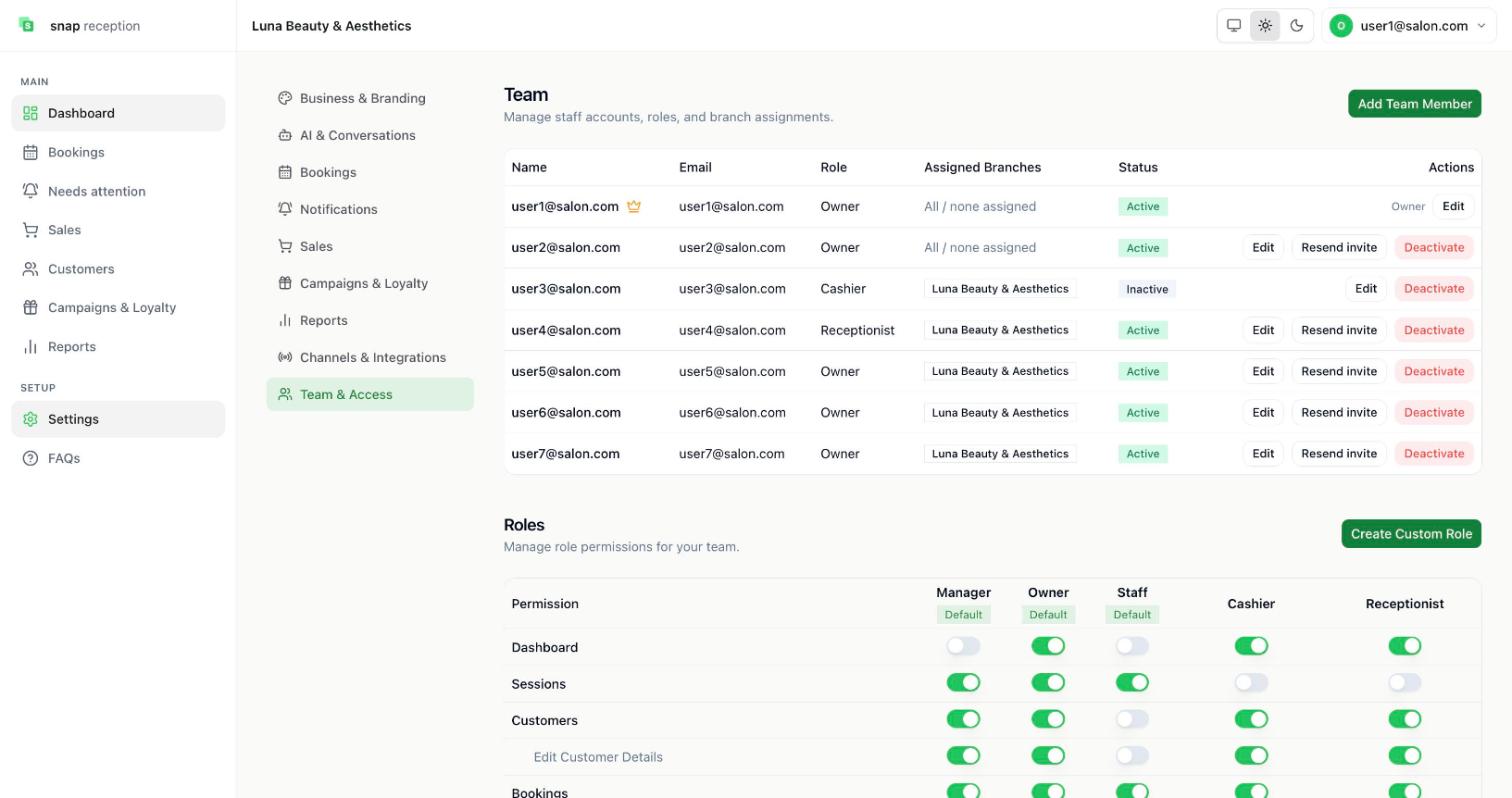
Open Settings. A list on the left has nine sections. Which ones you see depends on your role's permissions.
| Section | What it controls | Needs permission |
|---|---|---|
| Business & Branding | Business name, type, currency (read-only here) and your outlets | Outlets |
| AI & Conversations | Message limits, topic guardrails, alert settings, human handoff and agents | Settings or Agents |
| Bookings | Services, Packages, Promotions, Staff, Booking Fields | Booking System or Cash Drawer |
| Notifications | Ring for booking alerts per branch | Booking alerts, Team, Settings or Customers |
| Sales | Quick Sale layout and billing rules | Cash Drawer |
| Campaigns & Loyalty | Stamp card and rewards | Program Settings |
| Reports | Feedback form builder | Settings |
| Channels & Integrations | WhatsApp connection and calendar sync | Settings |
| Team & Access | Team members, roles and permissions | Team |