
A loyalty stamp card rewards customers who come back. Feedback collects a rating after every visit so you hear about a bad experience before it becomes a bad review.
Who can use it: Loyalty is a permission (and Program Settings is a separate one). Feedback and Sessions are also separate permissions.
Loyalty: Check-in and Rewards
How to do it
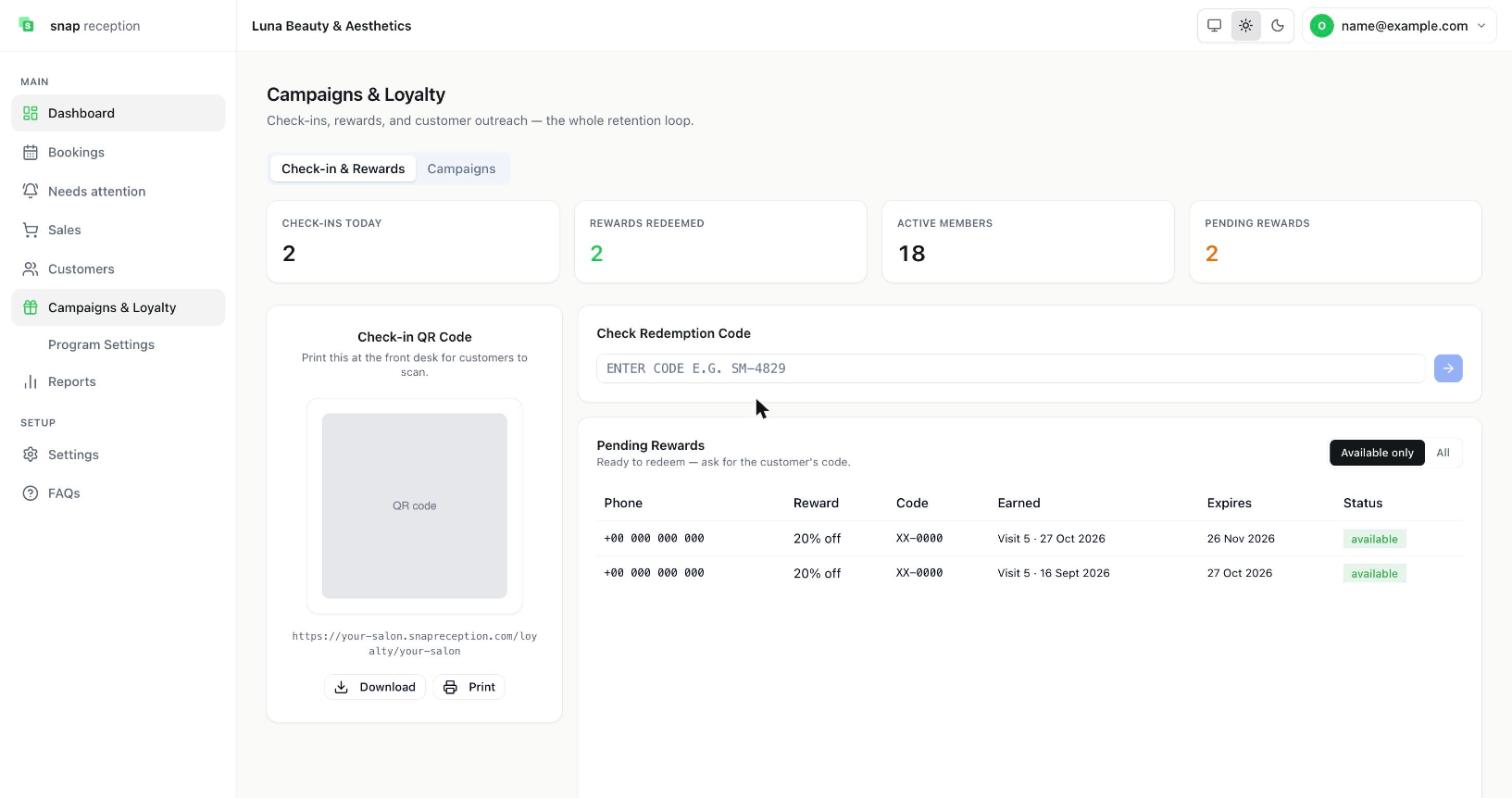
- Open Campaigns & Loyalty. The first tab is Check-in & Rewards.
- Print the Check-in QR Code (use Download or Print) and put it at the front desk so customers can scan it.
- When a customer shows a reward code, type it in Check Redemption Code and press the arrow.
- The Pending Rewards table lists rewards waiting to be used, with phone, reward, code, when earned, when it expires and status. Switch between Available only and All.
What it does
Shows today's Check-ins, Rewards redeemed, Active members and Pending rewards. Customers collect a stamp for each visit; when they reach a reward stamp they earn a reward and a redemption code.
Use cases
Rewarding regulars; checking a code at the desk before giving a discount; seeing who has an unused reward.
Workaround for
Paper punch cards that get lost, or remembering "she gets a free one on her 10th visit".
Side effects
- A stamp can also come from a completed bill in Sales. Completing a sale for a customer with a phone number registers a visit for them.
- One visit per customer per business day. A second bill the same day adds no extra stamp.
- Only a bill with a real service line counts. Open items and retail products do not earn a stamp.
- When a customer earns a reward, they get a WhatsApp message with their code.
- Rewards expire after the number of days you set.
- Stamps are tied to the customer's phone number.
Limits and gotchas
- Keep phone numbers in one consistent format (with the country code). If the same person is saved two different ways, the system can treat them as two customers, splitting their stamps and handing out an early reward twice.
- A customer who scans the QR but never gets a stamp registered may receive a WhatsApp reminder within a day.
- Today's check-in PIN is shown on this page with a Regenerate PIN button. The page says: Tell customers this PIN verbally. Never display or share it digitally.
Loyalty Program Settings
How to do it
- Open Settings → Campaigns & Loyalty, or Campaigns & Loyalty → Program Settings.
- Choose Visit-Based Loyalty or Point-Based Loyalty at the top.
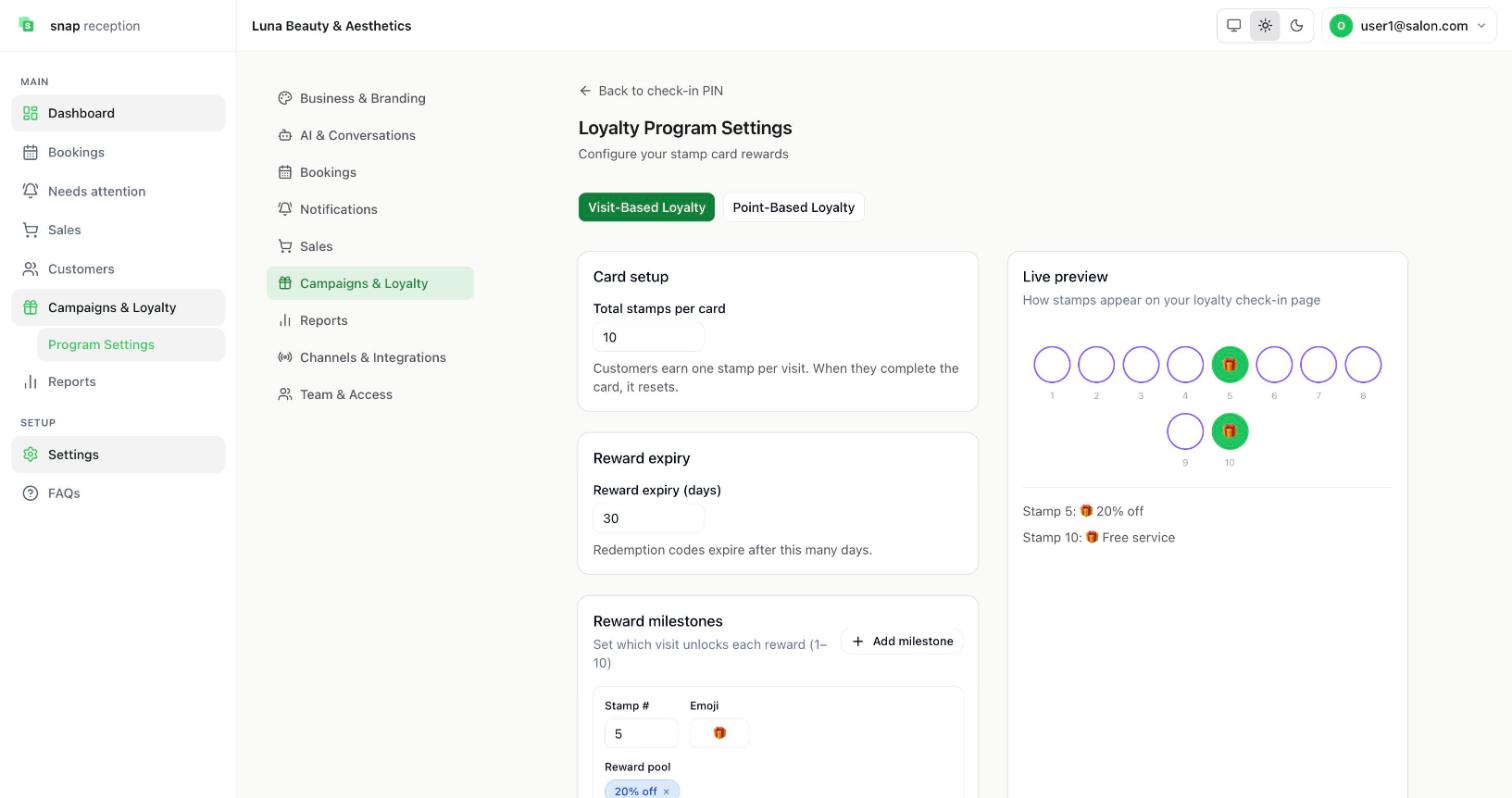
- Under Card setup set Total stamps per card (the example shows 10).
- Under Reward expiry set how many days a redemption code stays valid (the example shows 30).
- Under Reward milestones press Add milestone, then choose the stamp number, an emoji and a reward pool (for example "20% off" at stamp 5 and "Free service" at stamp 10).
- The Live preview on the right shows the card exactly as customers see it.
What it does
Defines when customers earn rewards and how long the codes last. The card loops: the card size is the highest milestone, and after the last stamp the count starts again at 1.
Further down the same page there are three more cards, and a Save program button for the whole stamp-card section:
- Stamps from bills. Switch on Add a stamp when a bill is paid to give a stamp automatically when a bill with a service is completed for a customer. One stamp per customer per day, however many bills. The customer must be on the bill. The receipt shows their progress and a link to their stamp card. The QR + PIN check-in keeps working and will not give a second stamp the same day.
- Receipts. Mask customer phone on receipts (on by default) prints the phone with its middle digits hidden. Off prints the full number. Reprints follow the current setting.
- Surprise Rewards. Enable surprise rewards gives random bonus rewards on check-ins that aren't milestones.
Use cases
"Every 5th visit 20% off, every 10th a free blow-dry"; a seasonal reward that expires in 14 days; a stamp for every paid bill without anyone scanning a QR.
Workaround for
Giving discounts ad hoc by memory.
Side effects
- The Live preview on the right shows the card exactly as customers see it.
- With Stamps from bills on, a stamp is added when the bill is paid and the receipt carries the customer's progress.
Limits and gotchas
- A milestone at stamp 1 rewards the customer on their very first visit. Use it on purpose.
- Reward pool = the list of possible rewards at that stamp.
- Press Save program after changing the stamp card.
Referrals
How to do it
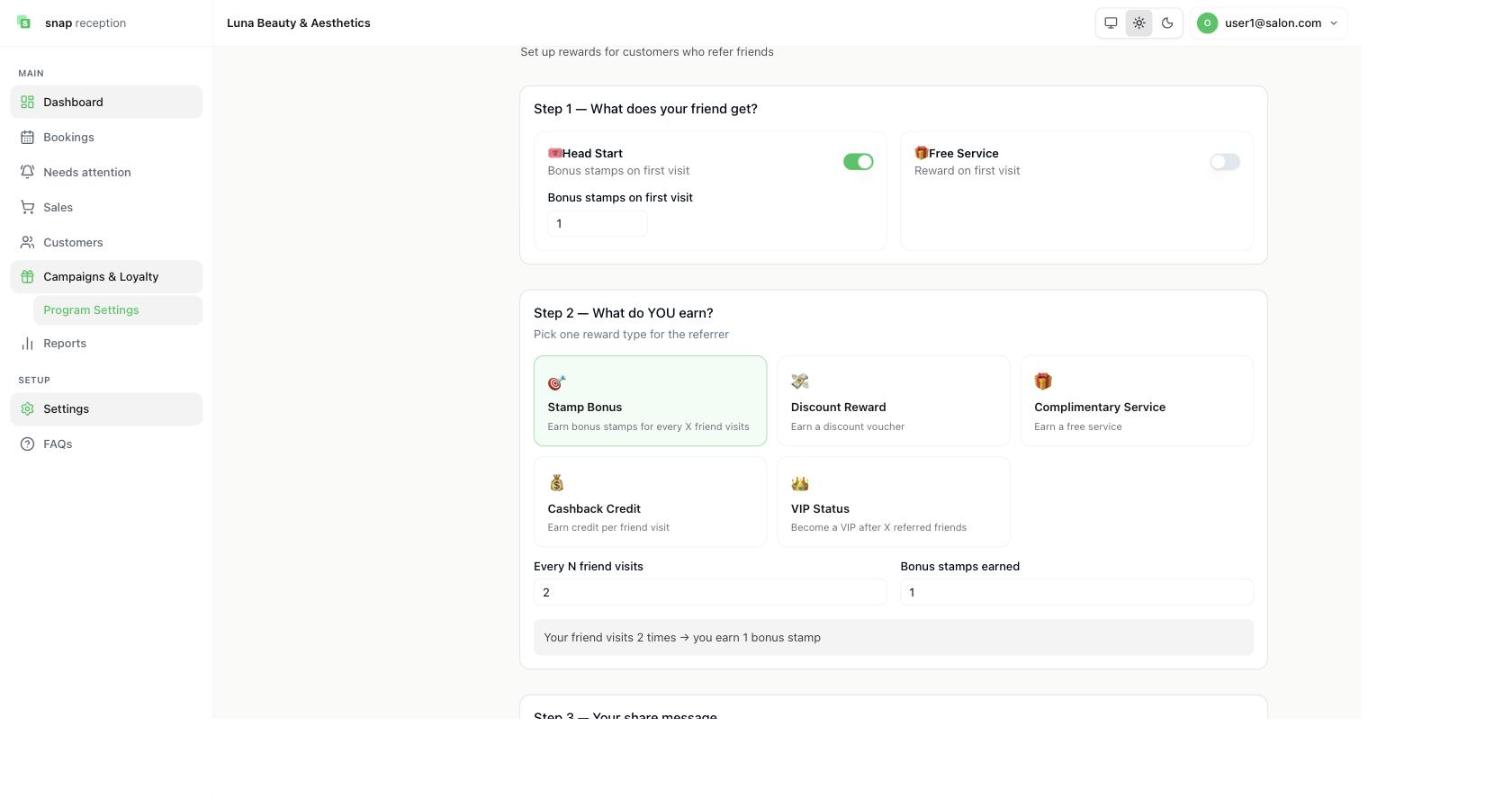
- Open Settings → Campaigns & Loyalty and scroll to Referral Program ("Set up rewards for customers who refer friends"). The old Referral address opens this same page.
- Step 1: What does your friend get? Choose Head Start (bonus stamps on their first visit, with a number you set) or Free Service (a reward on their first visit).
- Step 2: What do YOU earn? Pick one reward for the person who referred: Stamp Bonus, Discount Reward, Complimentary Service, Cashback Credit or VIP Status. Set Every N friend visits and Bonus stamps earned. A plain-English line confirms it, for example "Your friend visits 2 times → you earn 1 bonus stamp".
- Step 3: Your share message. Write up to 200 characters. A WhatsApp preview shows the message with the customer's personal link.
- Step 4: Enable referrals. Switch on Enable referral program and press Save referral program.
What it does
Gives each customer a personal link to share. When a friend visits through it, they get the Step 1 reward and the referrer earns the Step 2 reward after the number of visits you chose.
Use cases
Word-of-mouth growth without paying for ads.
Workaround for
"Tell them I sent you" with no way to keep track.
Side effects
- A bill in Sales has no referral link of its own. It only moves forward a referral that already exists.
Limits and gotchas
- Choose one reward type for the referrer.
- The share message is capped at 200 characters.
Customer feedback
How to do it
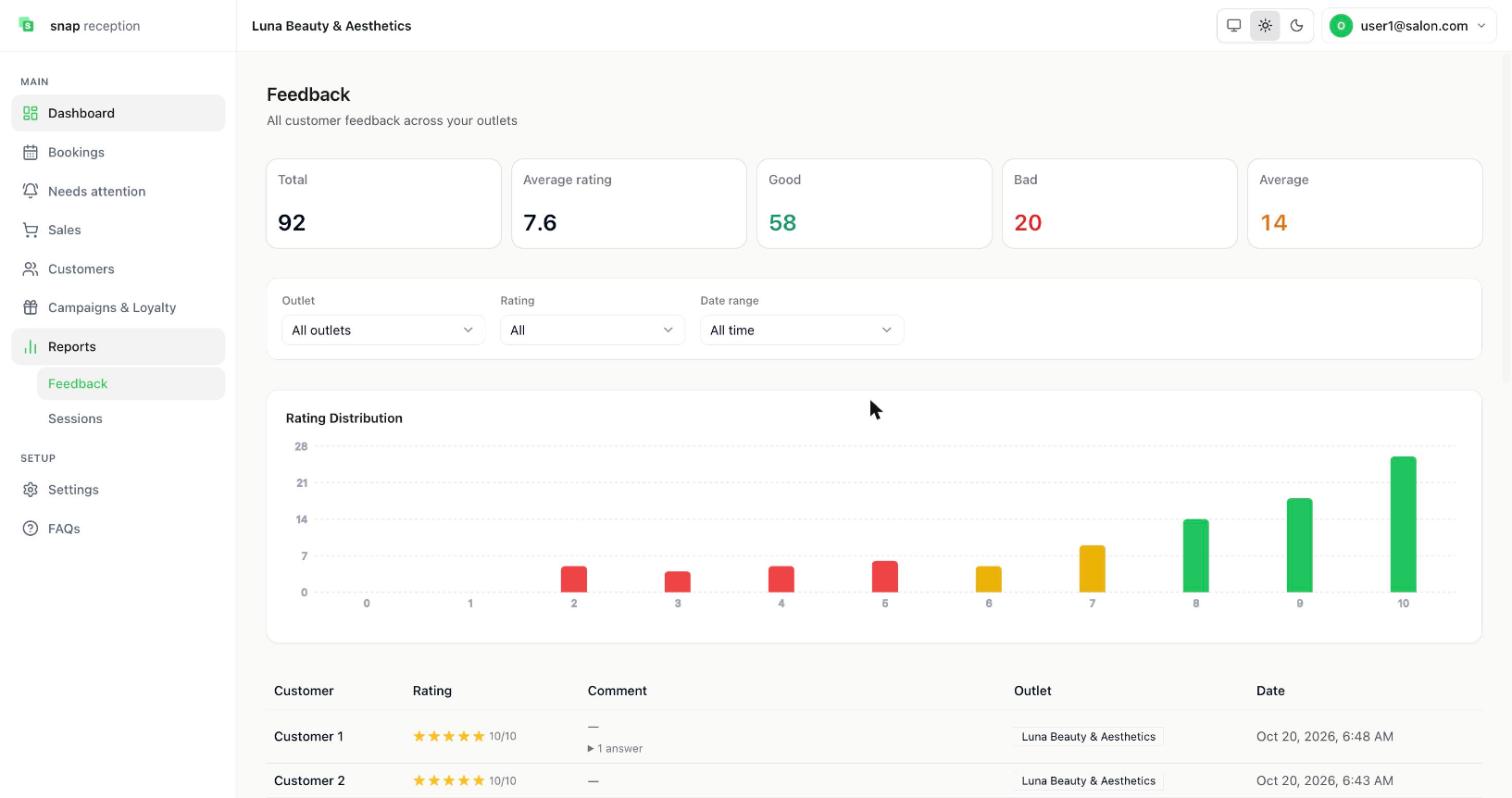
- Open Reports → Feedback.
- Use the Outlet, Rating and Date range filters.
- Read the table: customer, rating, comment, outlet, date. A comment with extra answers shows 1 answer you can expand.
What it does
Summarises feedback with Total, Average rating, and counts of Good, Average and Bad, plus a bar chart of how many customers gave each score from 0 to 10.
Use cases
Spotting a drop in service quality; finding a staff member customers love; proving a problem is fixed.
Workaround for
Waiting for a bad Google review to find out something went wrong.
Side effects
- The dashboard's Action Center warns you about low reviews (Bad or Average) since yesterday.
- A customer's rating also appears on their profile under the Feedback tab.
Limits and gotchas
- Feedback depends on customers actually scanning the QR on their bill.
Build your feedback form
How to do it
- Open Settings → Reports.
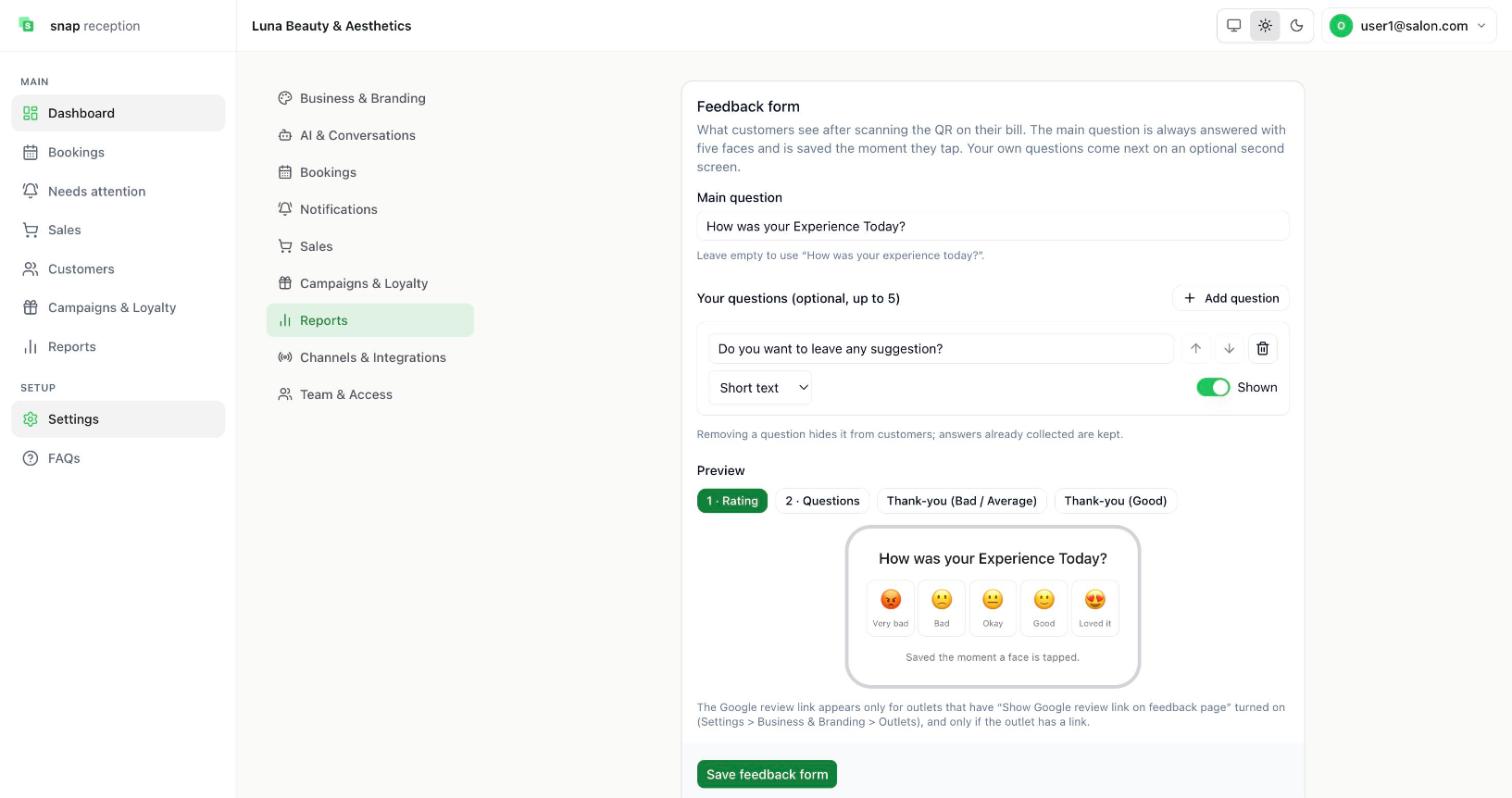
- Under Feedback form edit the Main question (leave empty to use "How was your experience today?").
- Press Add question to add up to 5 of your own questions (for example "Do you want to leave any suggestion?") and choose the answer type, such as Short text. Use the arrows to reorder, the toggle to show or hide, and the bin to remove.
- Use the Preview buttons (Rating, Questions, Thank-you Bad/Average, Thank-you Good) to see each screen.
- Press Save feedback form.
What it does
Customers see your main question first, answered with five faces from Very bad to Loved it. The rating is saved the moment a face is tapped. Your extra questions come next on an optional second screen.
Use cases
Asking "Which service did you have?" or "Would you recommend us?".
Workaround for
Handing out paper comment cards.
Side effects
- Removing a question hides it from customers, but answers already collected are kept.
- The Google review link appears only for outlets that have Show Google review link on feedback page switched on and a link saved (Settings → Business & Branding → Outlets).
- Unhappy ratings can alert you on WhatsApp first, then by email if WhatsApp can't deliver.
Limits and gotchas
- Up to 5 custom questions.
- Different thank-you screens show for Bad/Average and Good ratings, so you can ask unhappy customers to contact you instead of posting publicly.
Campaigns: ask past customers to rate their visit
How to do it
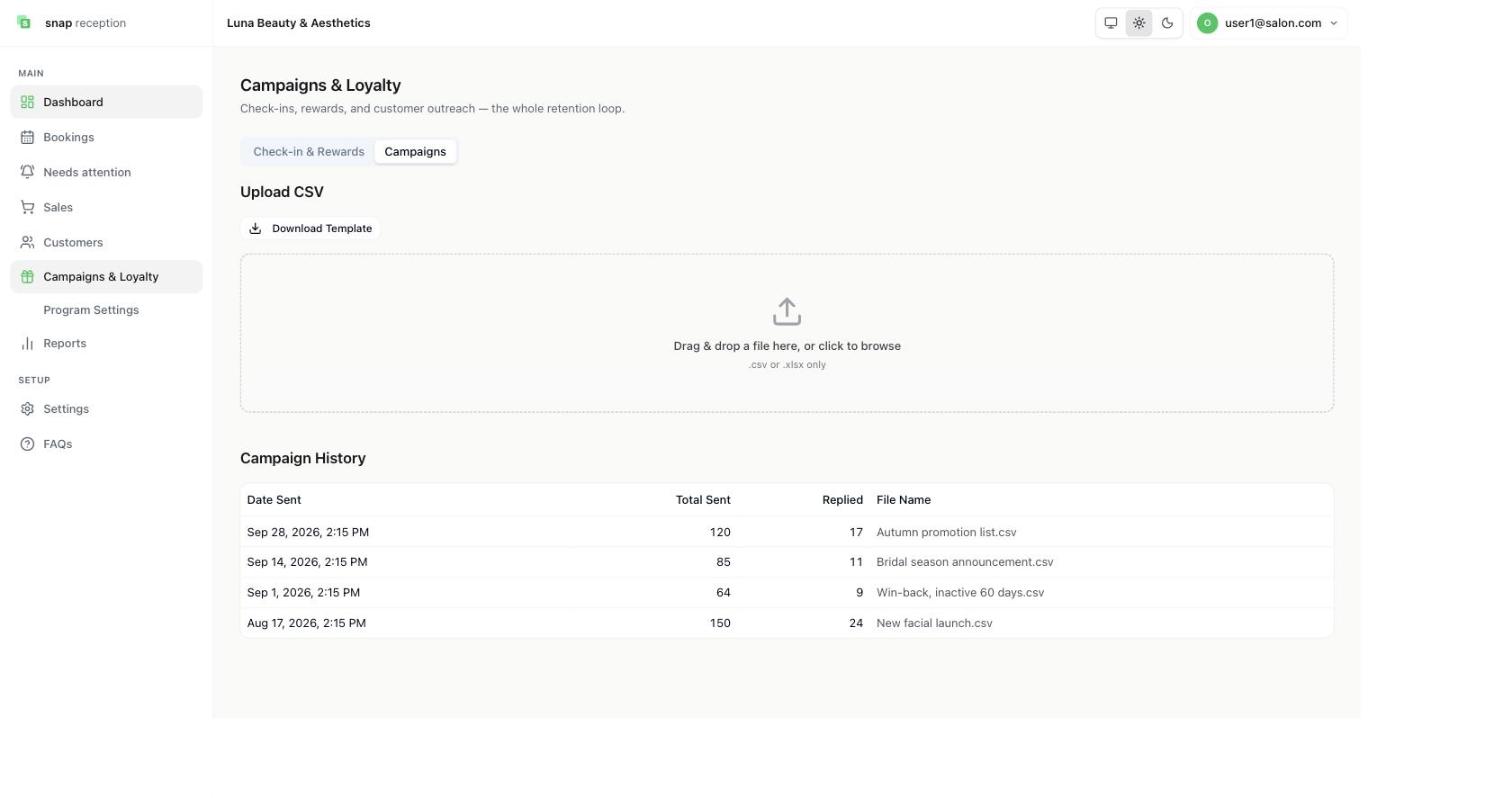
- Open Campaigns & Loyalty → Campaigns.
- Press Download Template to get the file format.
- Fill it in with your customers (name, phone, what they had and the date), then drag the file onto the box or click to browse. Only .csv or .xlsx files are accepted.
- Check Campaign History afterwards: date sent, total sent, how many replied, and the file name.
What it does
Sends each person on the list a WhatsApp message thanking them for their visit and asking them to rate their experience, for example from 0 to your rating scale. Replies come back as ratings. Duplicate phone numbers in one file are sent only once, and rows with no valid phone are skipped.
Use cases
Collecting reviews from customers who visited before you started using the feedback QR; a monthly check-in with recent customers.
Workaround for
Messaging customers one by one from your own phone.
Side effects
- Uploading a file sends real WhatsApp messages to everyone on it. There is no preview step described on screen, so check the file first.
- Each upload is added to Campaign History with the number sent, failed and replied.
Limits and gotchas
- It is a rating request, not a general promotion.
- Only upload people who have agreed to be contacted.